Super Admin and Admin are administrative roles. Your assigned role and its permissions determine which account, brand and team actions you can use; the names alone are not a complete permissions checklist.
Check a member’s role
- Confirm the selected brand.
- Open Workspace → Settings → Teams.
- Read the member’s Role in Team Management.
- Open Permissions in the Settings sidebar to inspect the available role permissions.
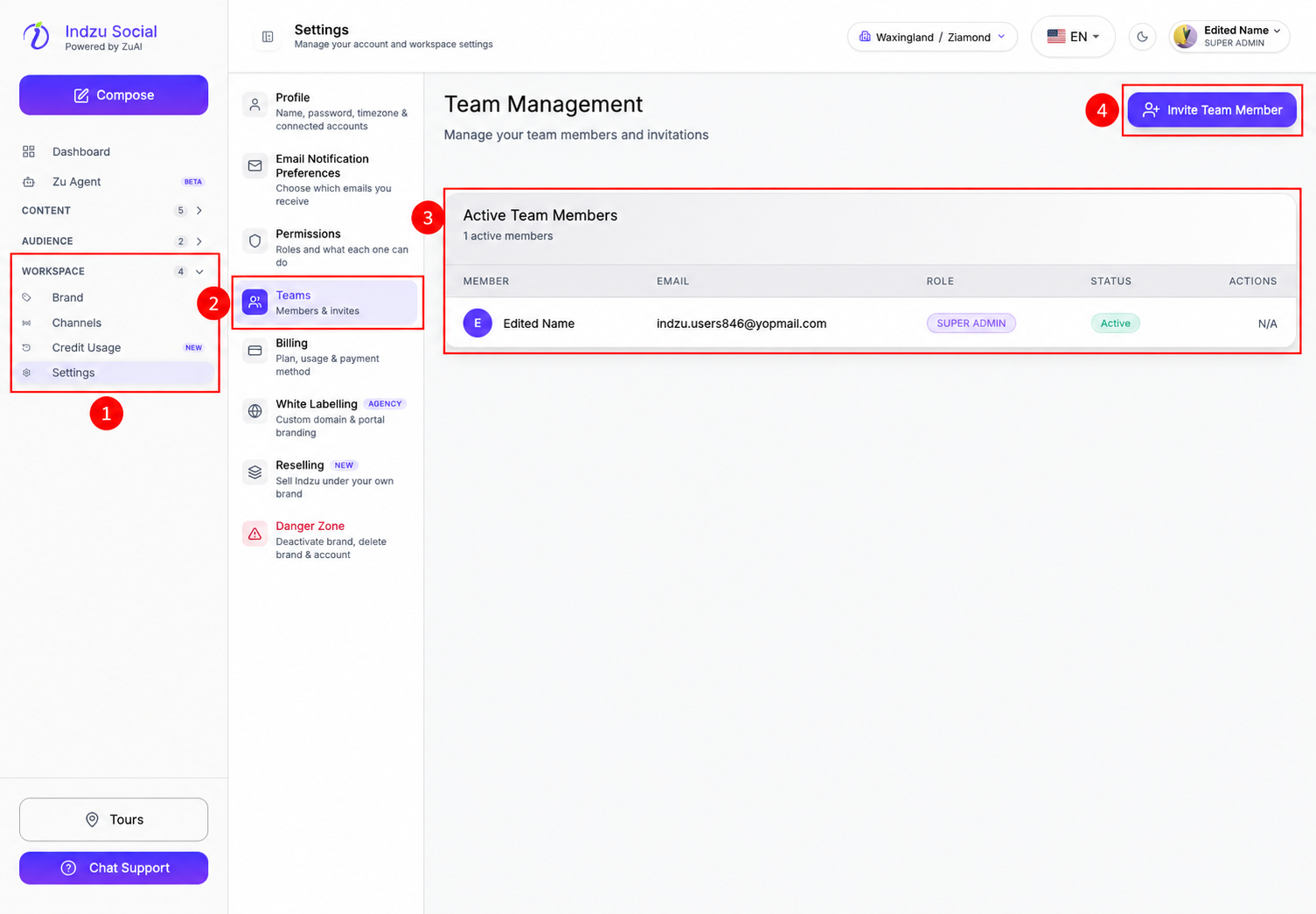
The example member has SUPER ADMIN and is the signed-in user, so the Actions column shows N/A. This is an account example, not a role assignment instruction.
What affects the available controls?
Inviting and managing members requires team-management permission. Ordinary team-member deactivation is disabled for administrative roles. Your own member row does not offer a deactivation action.
Do not assume that another administrator has the same brand access or every permission you have. Check the relevant permission and brand membership when a control is missing or disabled. Plan availability can also affect access to a feature.
See Team Management and Member information.