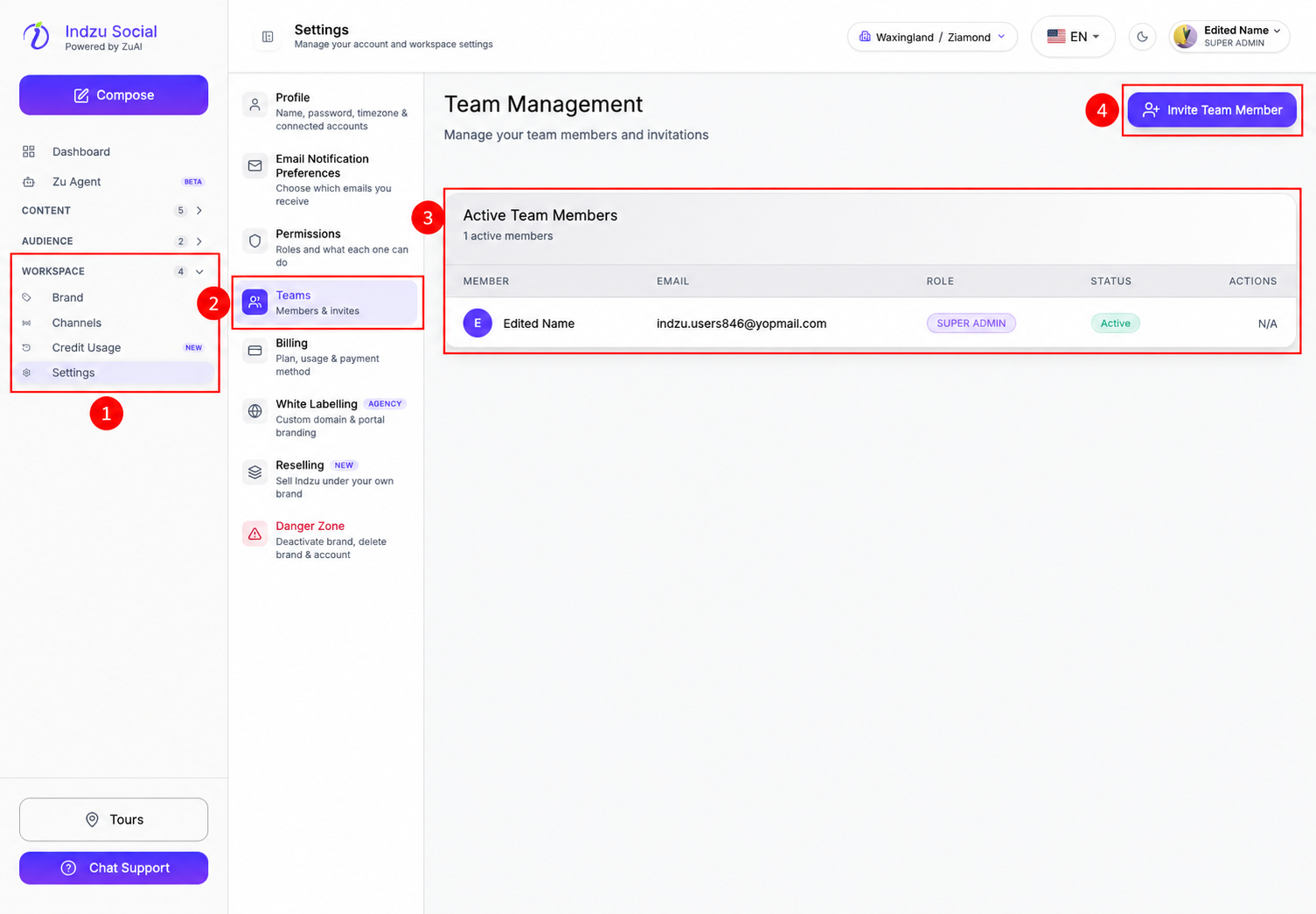
Open Workspace → Settings → Teams and confirm the selected brand. The Team Management table identifies each member and the actions available to your account.
Read the columns
- Member: the member’s name and avatar or initial.
- Email: the address associated with that member.
- Role: the assigned role, such as SUPER ADMIN. A missing role is shown as a dash placeholder.
- Status: the member’s current status. Active and inactive members appear in separate sections when both exist.
- Actions: available membership controls. Your own row shows N/A; other actions can be disabled by permissions or the member’s administrative role.
Check access before changing it
A role label summarizes the assignment; use Workspace → Settings → Permissions to inspect what that role allows. A member’s status does not by itself tell you whether they can approve a particular post.
Pending invitations are shown separately from members who have already joined. Do not treat an invitation as an active member account.
See Team Management and Super Admin and Admin.