If you know your current password, you can change it from the Profile section in Indzu Social Settings.
Change your password
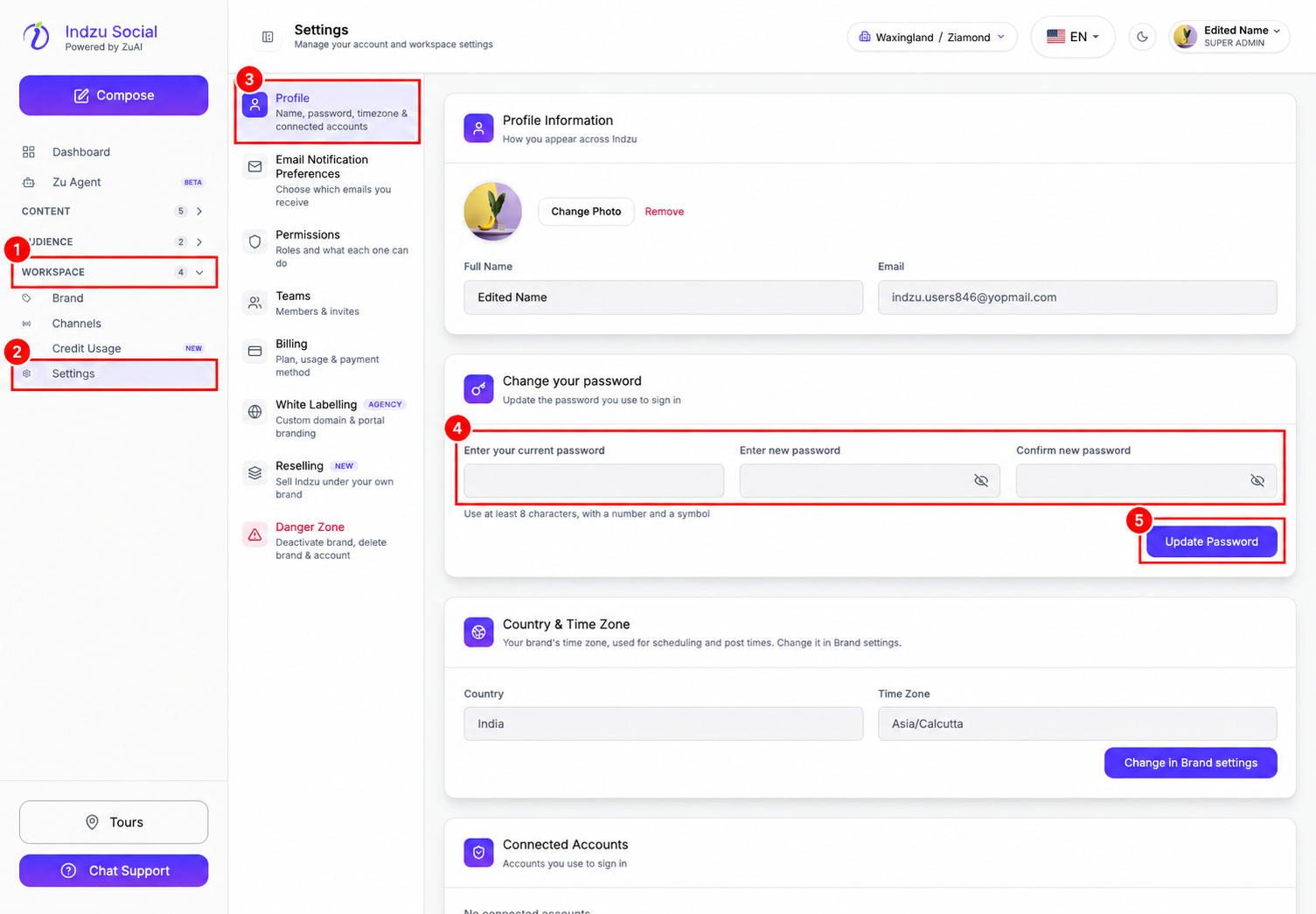
- Expand Workspace in the left sidebar.
- Select Settings.
- Select Profile in the Settings menu.
- Find the Change your password card.
- Enter your existing password in Enter your current password.
- Enter your new password in Enter new password.
- Enter the same new password in Confirm new password.
- Select Update Password.
When the update succeeds, Indzu displays a confirmation message. Use your new password the next time you sign in.
Password requirements
Choose a password with at least eight characters, including an uppercase letter, a lowercase letter, a number, and a special character. Your new password must differ from your current password, and the new-password and confirmation fields must match.
Where to find the password form
Forgot your current password?
Use Forgot password? on the sign-in page to reset it instead. See How to log in if you have forgotten your password.