If you cannot remember the password you use to sign in to Indzu, request a password-reset link from the sign-in page.
Request a reset link
- Open the Indzu sign-in page.
- Enter your registered email address and select Next.
- On the password screen, select Forgot password?.
- In the Forgot Password? dialog, enter your registered email address.
- Select Send Reset Link.
Enter your email
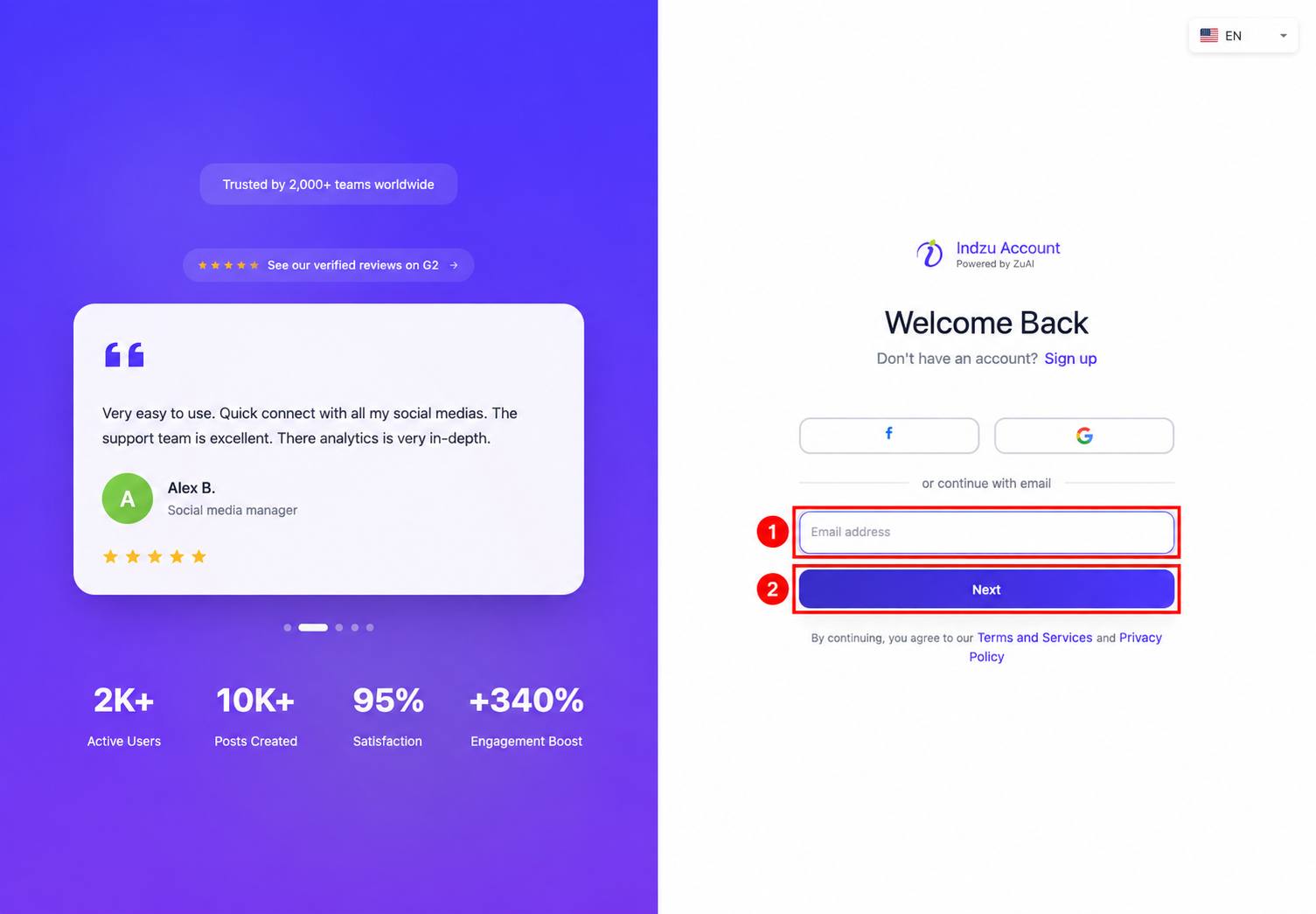
Open password recovery
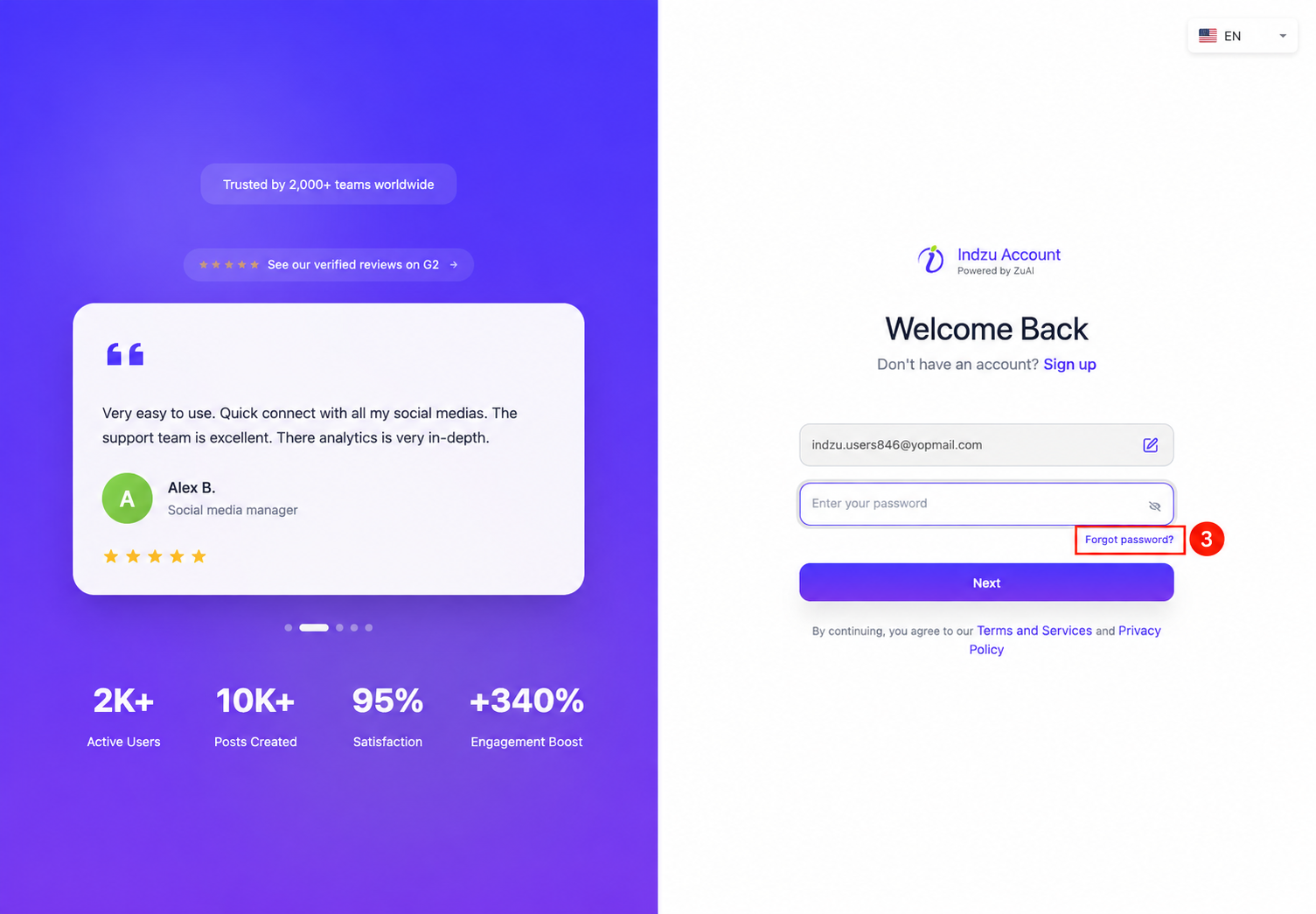
Request the reset email
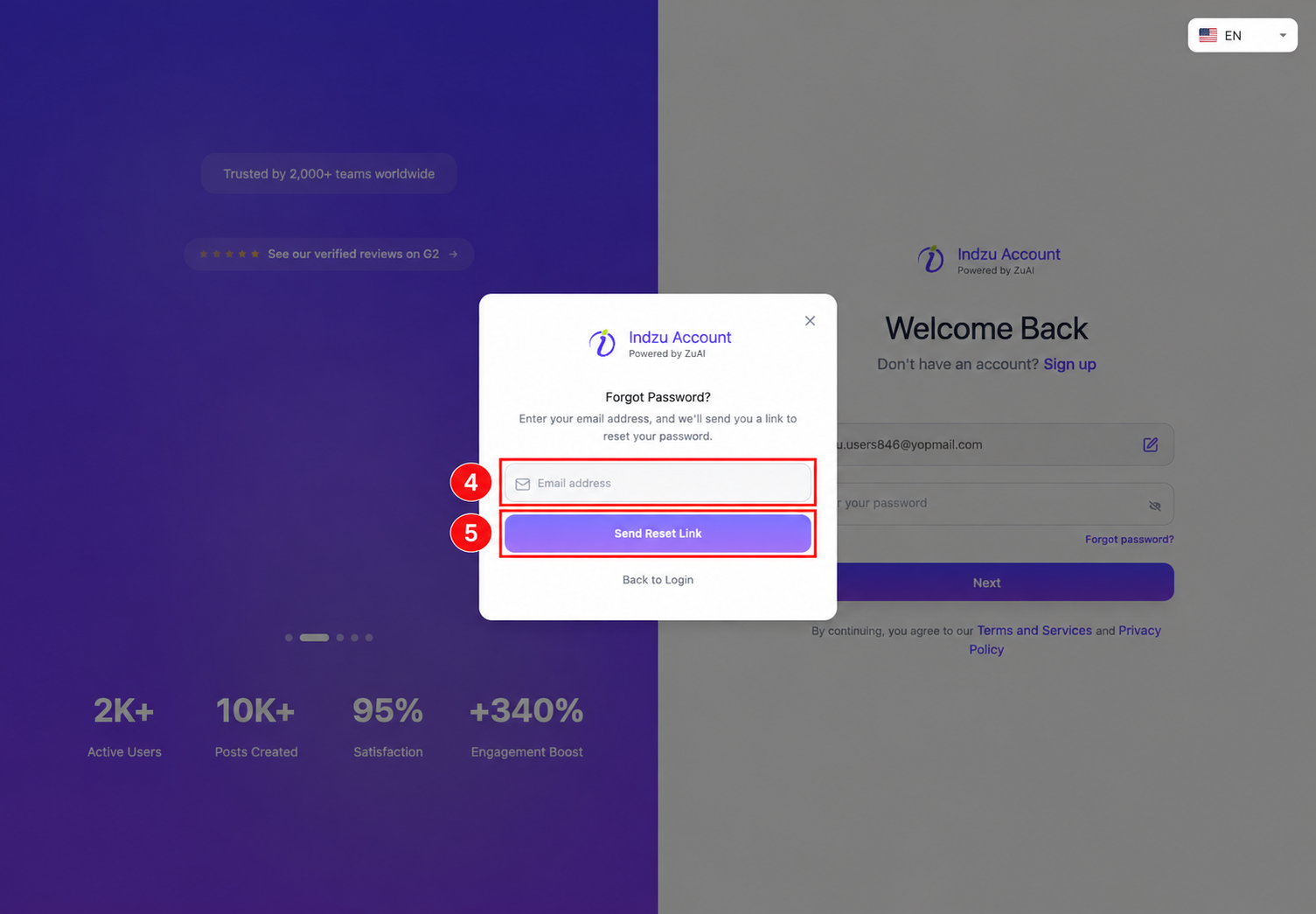
Set a new password
- Open the password-reset email and follow its reset link.
- Enter your new password in Enter new password.
- Enter the same password in Confirm new password.
- Select Reset Password.
- After the reset succeeds, return to the sign-in page and sign in using your email address and new password.
Choose a password with at least eight characters, including an uppercase letter, a lowercase letter, a number, and a special character. The new-password and confirmation fields must match.
If you do not receive the email
Check your spam or junk folder and confirm that you used the email address registered with Indzu. You can return to Forgot password? to request another link if needed.
If you know your current password and are already signed in, use How do I change my password in Indzu?.