Deactivation temporarily disables access to a brand while preserving its data. It is different from permanent brand deletion.
Open the deactivation controls
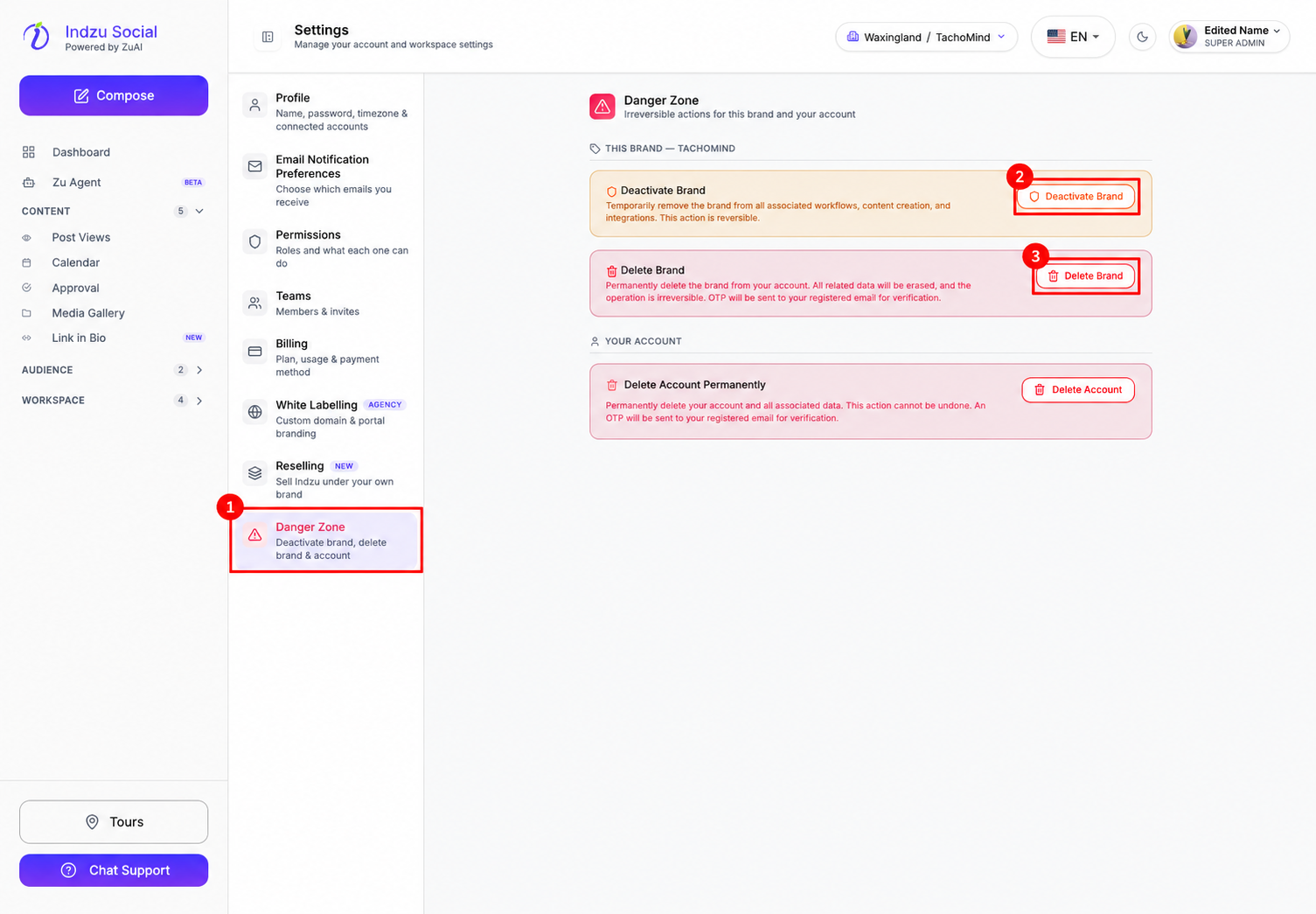
- Check the current workspace and brand in the top selector.
- Open Workspace → Settings → Danger Zone.
- Locate Deactivate Brand. This action has moved out of the Settings tab inside Brand.
Review and confirm
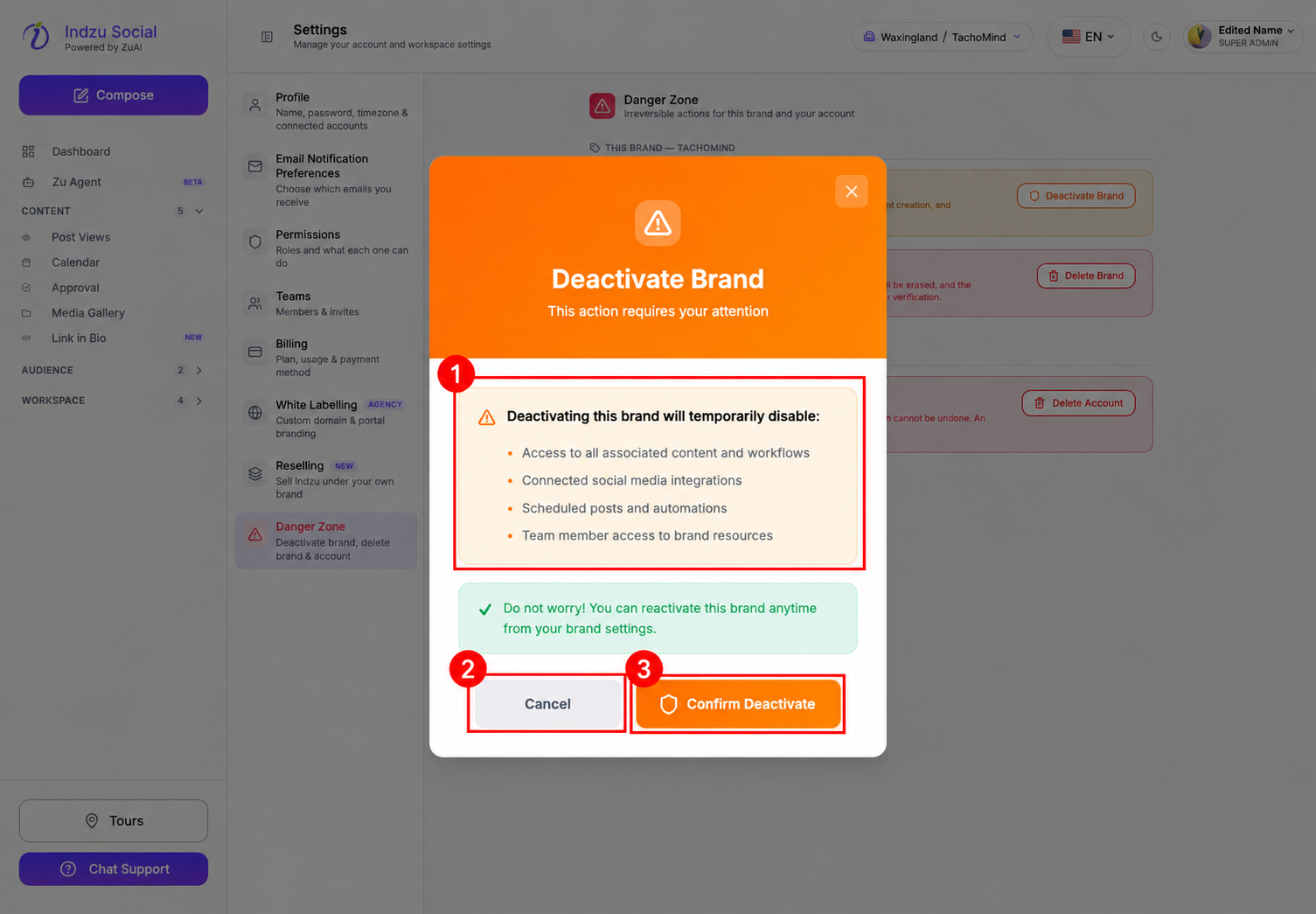
- Select Deactivate Brand to open the warning dialog.
- Read the effects on content/workflow access, connected social integrations, scheduled posts and automations, and team access.
- Select Cancel to keep the brand active. Select Confirm Deactivate only when you intend to disable it.
- After successful deactivation, follow any prompt to switch to another active brand.
The last active brand cannot be deactivated. Activate another brand first if this restriction applies. The action also requires update permission; contact your administrator if the control is unavailable.
The dialog explains that the brand can be reactivated later. If you cannot find the inactive brand or its reactivation control, contact an administrator or Chat Support. Do not assume deactivation changes your subscription or billing.
See deleting a brand only if you need permanent removal instead.