Country and timezone are in the Settings tab within Brand. This is different from Workspace → Settings in the left sidebar.
Update the location settings
- Open Workspace → Brand and check the selected brand.
- Select the Settings tab in the horizontal Brand menu.
- Under Location & Timezone, choose the intended Select Country value.
- Review Select Timezone and choose the correct timezone for that country. Changing the country can change the available timezone choices, so check both fields.
- Select Save Changes and wait for the save response.
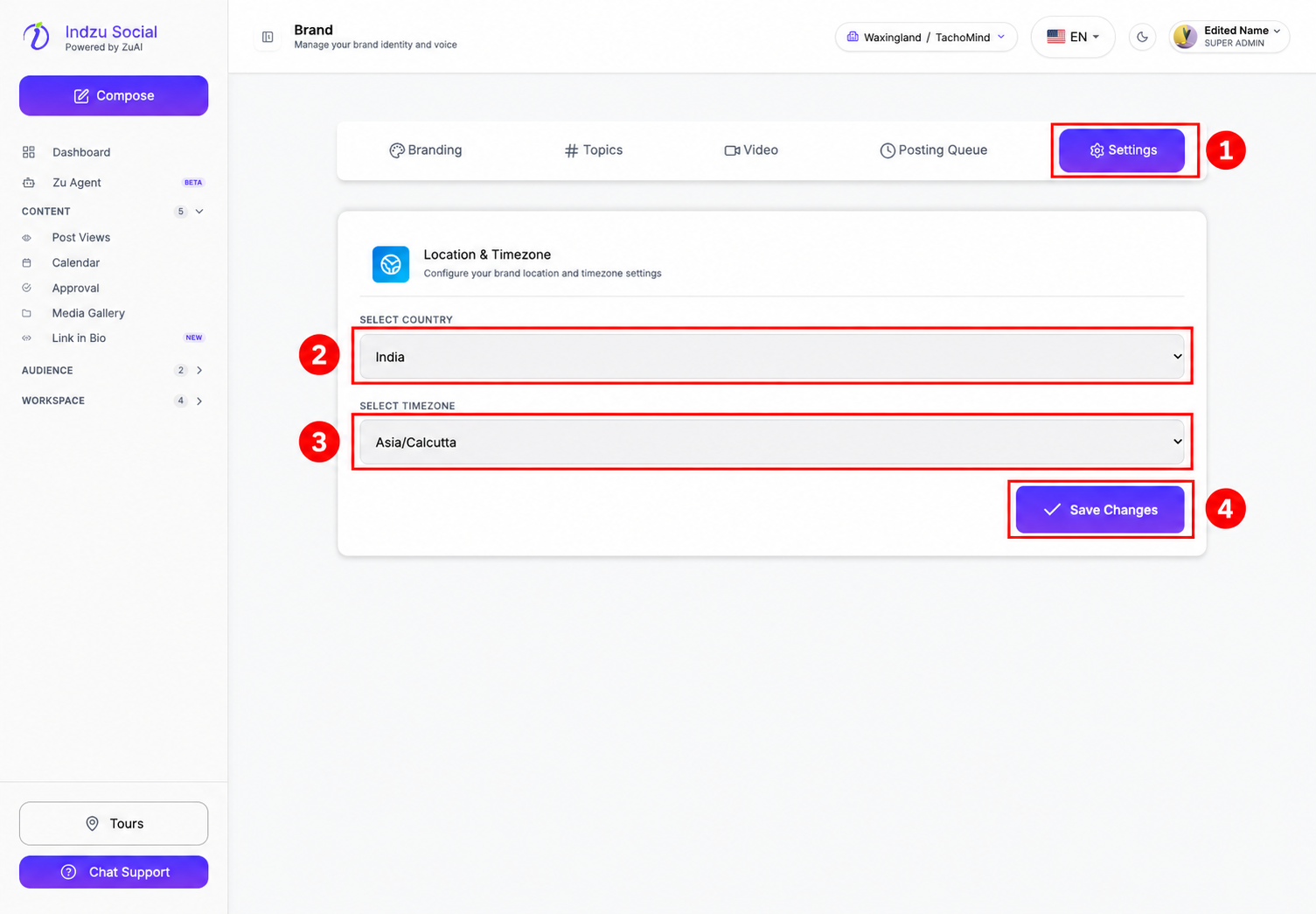
The screenshot shows an example selection, not the required location for every account. Use the timezone in which your team intends to manage posting times.
After changing the timezone, review the dates and times in Calendar and any posting-queue previews before scheduling more posts. Do not assume changing this setting will move already-scheduled posts to new times.
If the controls or save action are unavailable, check your brand-update permissions with an administrator. Keep Delete/Deactivate Brand separate: those actions now live in Workspace → Settings → Danger Zone.