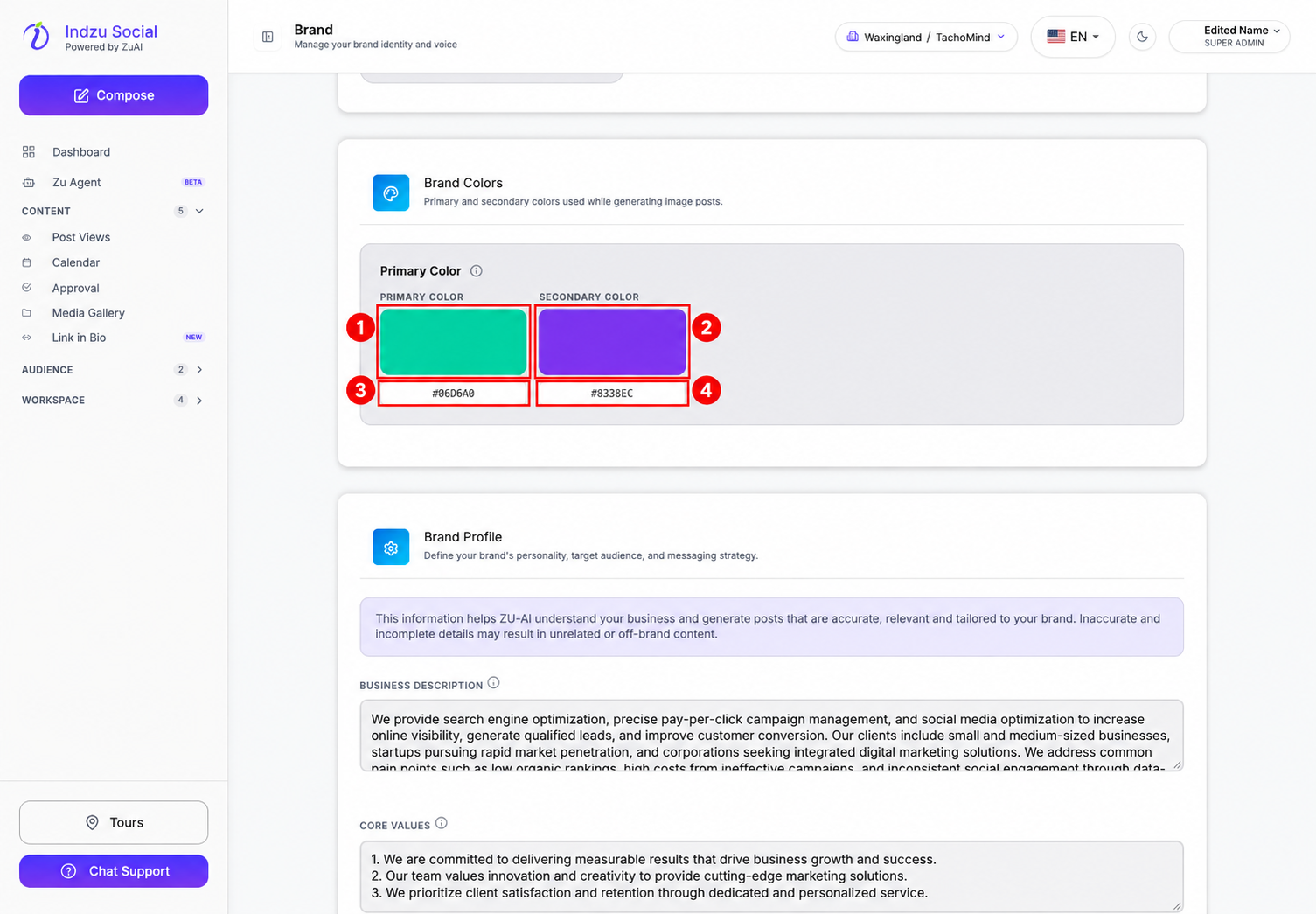
Brand colors help guide the appearance of generated image posts. The current Branding screen shows Primary Color and Secondary Color controls.
Edit the colors
- Open Workspace → Brand and confirm the selected brand.
- Select Branding and scroll to Brand Colors.
- Select the Primary Color swatch to choose a color, or enter the intended hexadecimal color value in the field beneath it.
- Repeat for Secondary Color. Use your approved brand color values where available.
Save and review the result
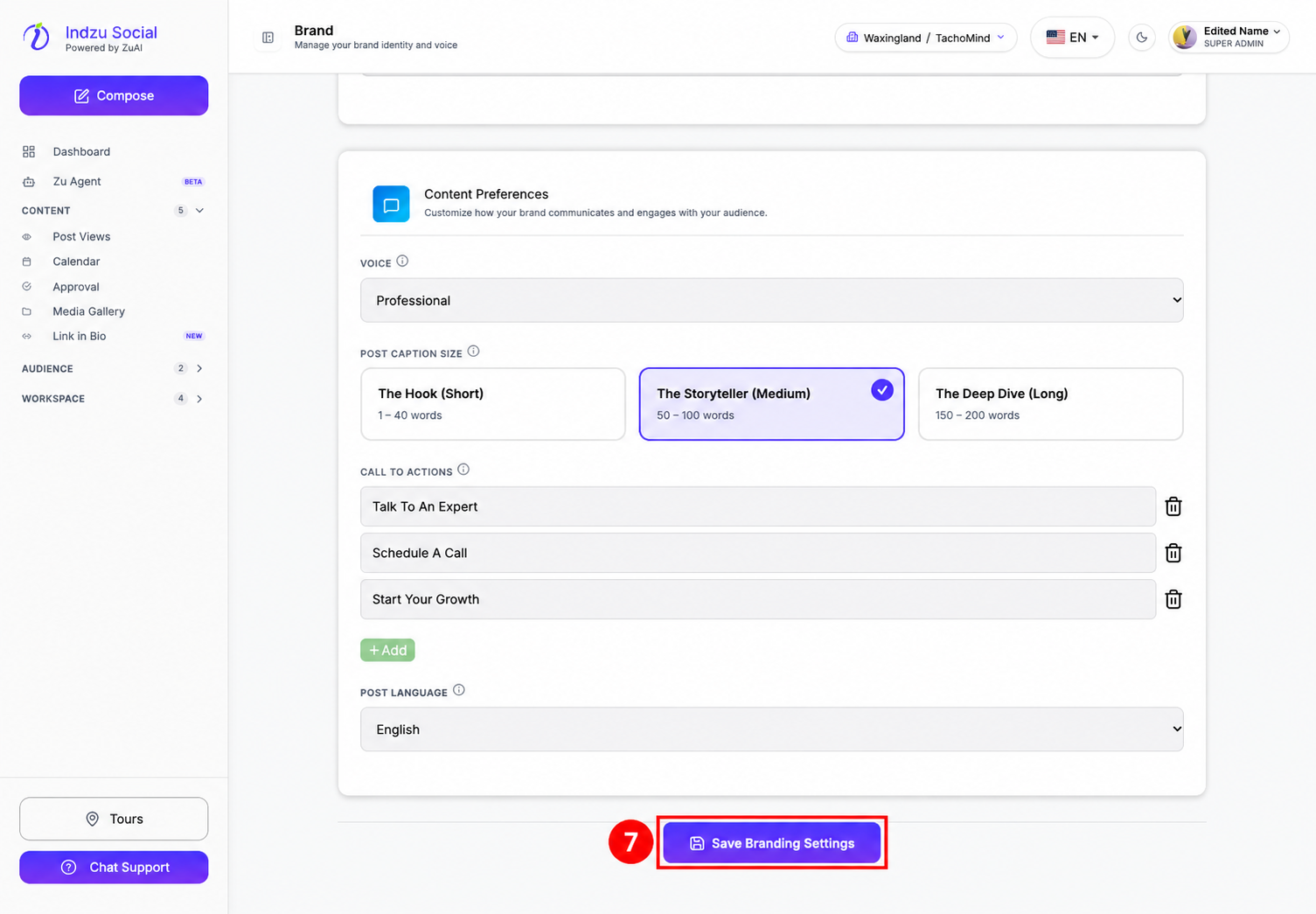
- Scroll to the bottom of Branding and select Save Branding Settings.
- Wait for the save response and resolve any invalid-value warning.
- Review future generated images for color consistency, contrast, and readable text. Updating brand colors does not recolor images that were already generated.
These controls are not the old Themes gallery. If a specific generation workflow provides its own theme or styling controls, review those too rather than assuming the brand colors override every creative choice.