Use the composer’s Generate Image + Caption option when you want an AI visual and accompanying text from an idea. Review both before choosing a publishing action.
Prepare your idea
- Confirm the brand and open Compose.
- Open Generate with Zu AI for an empty shared editor, or Rewrite with AI for existing text, and choose Generate Image + Caption.
- Choose the desired language.
- Review the Use brand details toggle. Enable it when the request should use the selected brand’s details; confirm that you selected the right brand first.
- Describe the image concept, tone, mood and message. The current form requires at least 80 characters and shows the prompt counter.
- Check the request and available access/credits, then select Generate when ready.
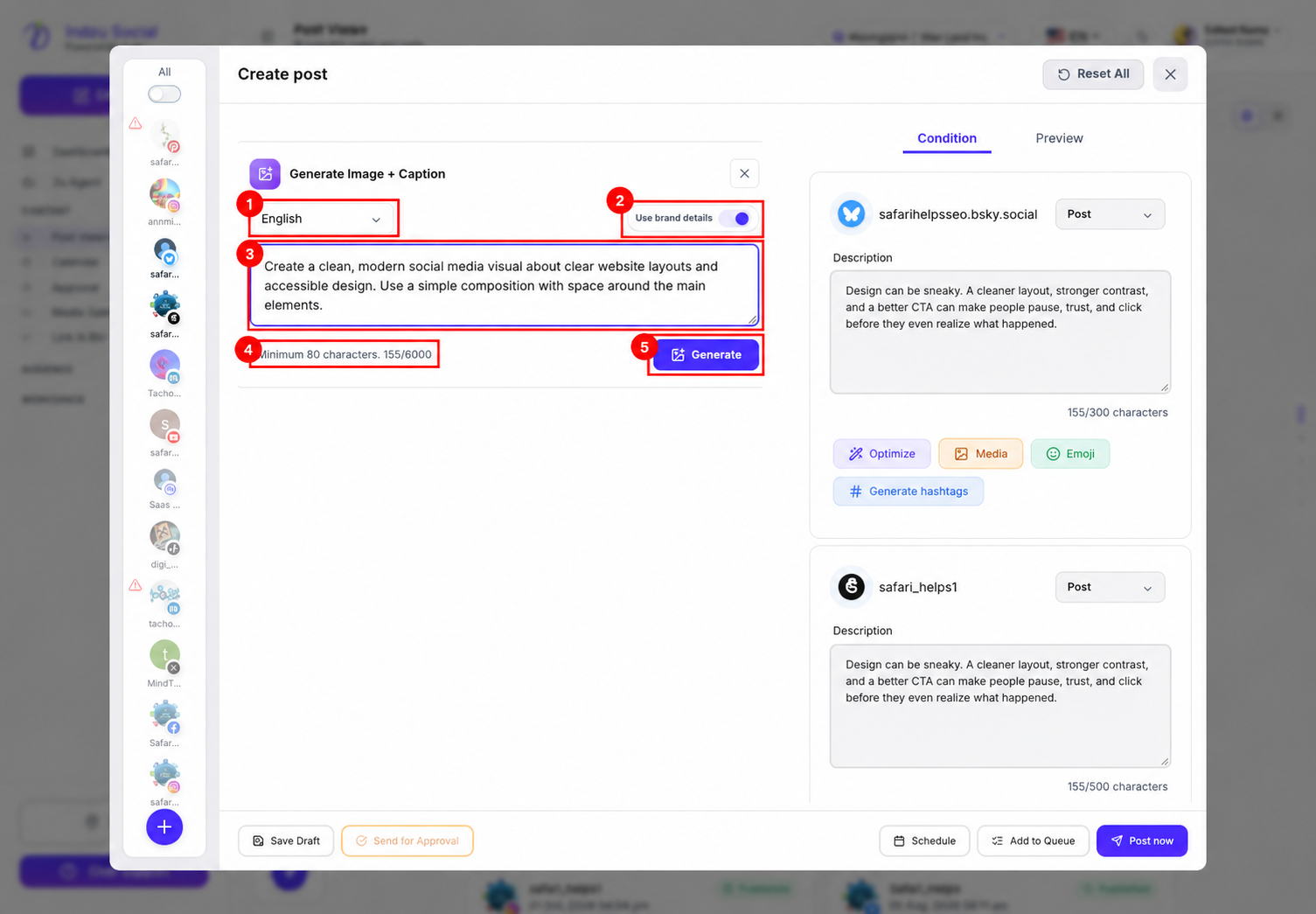
The screenshot shows an unsaved example idea, not generated media. No generation request was submitted for the documentation capture.
Review the output
Wait for generation to complete, then review the resulting visual and caption in the composer. Check image details, spelling, factual claims, brand fit and whether the selected platforms support the resulting media/post type. Fix any destination-specific validation messages under Condition and review each Preview before continuing.
Generation does not automatically schedule or publish a post. Choose Save Draft, Send for Approval when available, Schedule, Add to Queue or Post now deliberately after review.
If generation is disabled or fails, check the minimum prompt length, permissions, usage/credit restrictions and the actual error shown. Do not assume every attempt or revision is free.