You can save manually written content with Save Draft; AI generation is not required.
Save your manual post
- Confirm the intended brand and open Compose from the sidebar.
- Select the channel or channels where you plan to use the post.
- Type your caption in the shared text box and add any required media using Media.
- Under Condition, review each destination’s description, post type, character counter and validation messages. Correct any issue that disables the action buttons.
- Select Save Draft at the bottom left. Do not use Post now if your intent is only to save work.
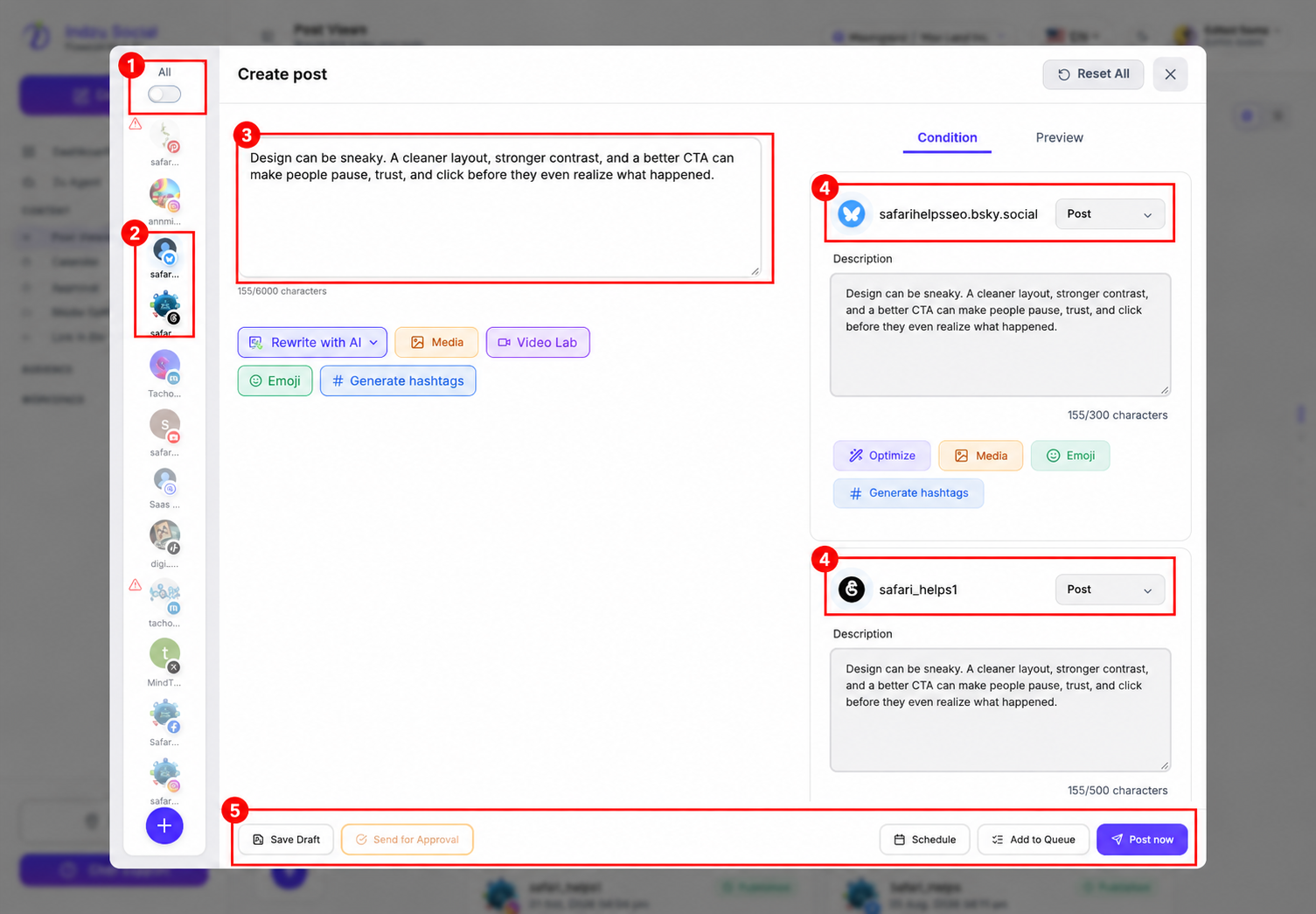
This is an unsaved demonstration using text from an existing published post. The selected Bluesky and Threads accounts are real usable destinations. No staging post was saved, scheduled, or published for this screenshot. The screenshot shows where to find Save Draft, not a saved-draft result.
Verify and resume
Go to Content → Post Views → Draft in the same brand and check the saved content and destination. Open the draft’s Edit action when you want to continue working.
A closing window alone does not confirm that the post was saved. Likewise, a draft is not scheduled or published simply because its content is ready. See the general draft workflow and how to create a new post.