Use Save Draft to keep a prepared post without publishing it immediately. The current composer button is Save Draft, not the older “Draft” or “Save as Draft” label.
Prepare and save
- Confirm the workspace and brand, then open Compose.
- Select the intended usable publishing channels.
- Add your caption and any required media, manually or with ZuAI assistance.
- Review each account under Condition and fix validation messages. A draft action can be unavailable when the selected content does not meet the composer’s requirements.
- Review Preview if needed, then select Save Draft in the bottom-left action bar.
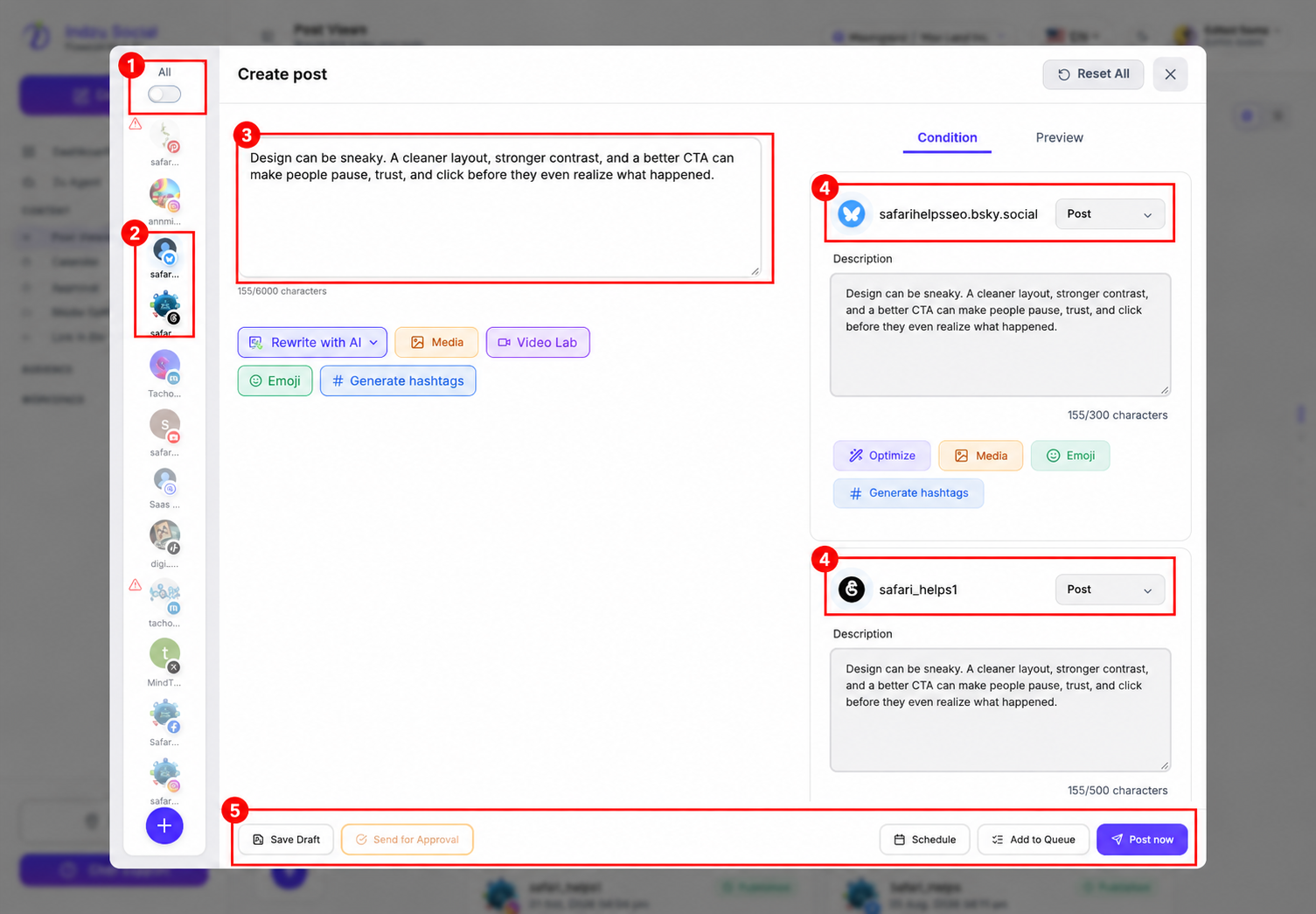
This is an unsaved demonstration using text from an existing published post. The selected Bluesky and Threads accounts are real usable destinations. No staging post was saved, scheduled, or published for this screenshot. The screenshot identifies the action; it does not show a saved-draft confirmation.
Find and continue the draft
Open Content → Post Views → Draft in the same brand. Check that the intended draft appears with the correct destination and content. Use its Edit action to continue, then deliberately choose whether to save again, request approval, schedule or publish.
Closing the composer is not a substitute for selecting Save Draft and checking the saved result. Saving a draft is different from scheduling a post and does not mean it has been published.
See creating a new post and scheduling a post.