Preview shows an approximate platform-specific rendering of your prepared post. It does not save, schedule, or publish the post.
Open the previews
- Open Compose, confirm the brand, and select the intended connected channels.
- Add your text and any required media. Under Condition, fix validation messages and review each destination’s account name and settings.
- Select Preview above the right-hand panel.
- Scroll through the preview cards for every selected destination. Check the account name, text and attached assets rather than reviewing just the first card.
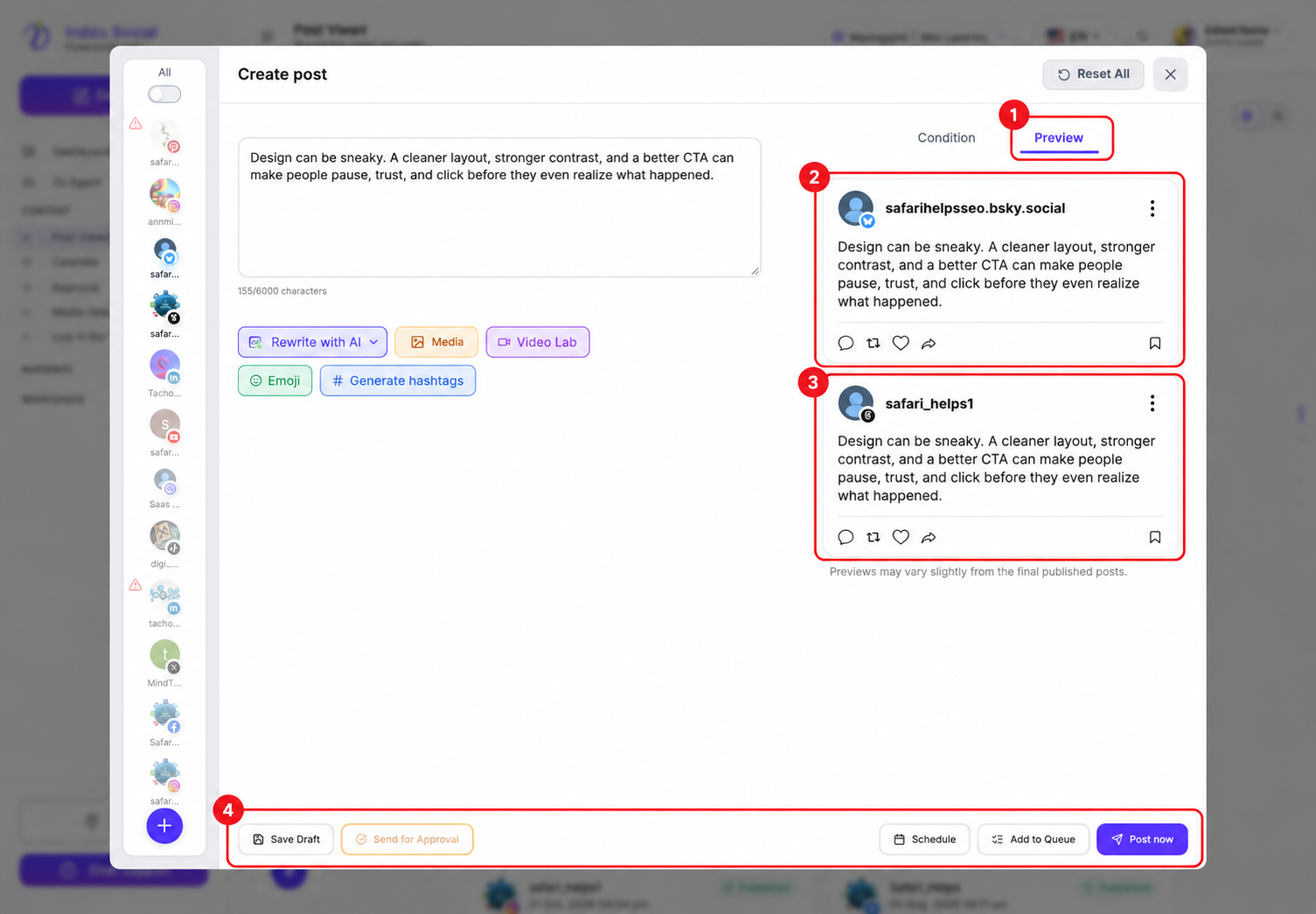
This is an unsaved demonstration using text from an existing published post. The selected Bluesky and Threads accounts are real usable destinations. No staging post was saved, scheduled, or published for this screenshot.
Make changes and review again
The preview cards are read-only. Select Condition to edit a destination’s text, media, post type or options, or edit the shared content on the left. Then return to Preview and check the affected destinations again.
Previews may differ slightly from the final posts rendered by the provider. A preview also does not override character limits, required media, access restrictions or provider validation.
Once satisfied, choose the intended action—Save Draft, Send for Approval, Schedule, Add to Queue or Post now—and complete that flow deliberately. See why previews cannot be edited and creating a new post.