Open the Caption Generator from the composer’s AI menu. Generate and review the text before accepting it into your post; generation is separate from publishing.
Prepare the caption request
- Confirm the brand, open Compose, and select the intended channels.
- Open Generate with Zu AI when the shared editor is empty, or Rewrite with AI when it already contains text.
- Choose Generate Caption.
- Fill the prompt with the topic, audience, message and desired call to action. Choose the language and tone shown below the prompt.
- Review the request, available access/credits and any validation message before selecting Generate when ready.
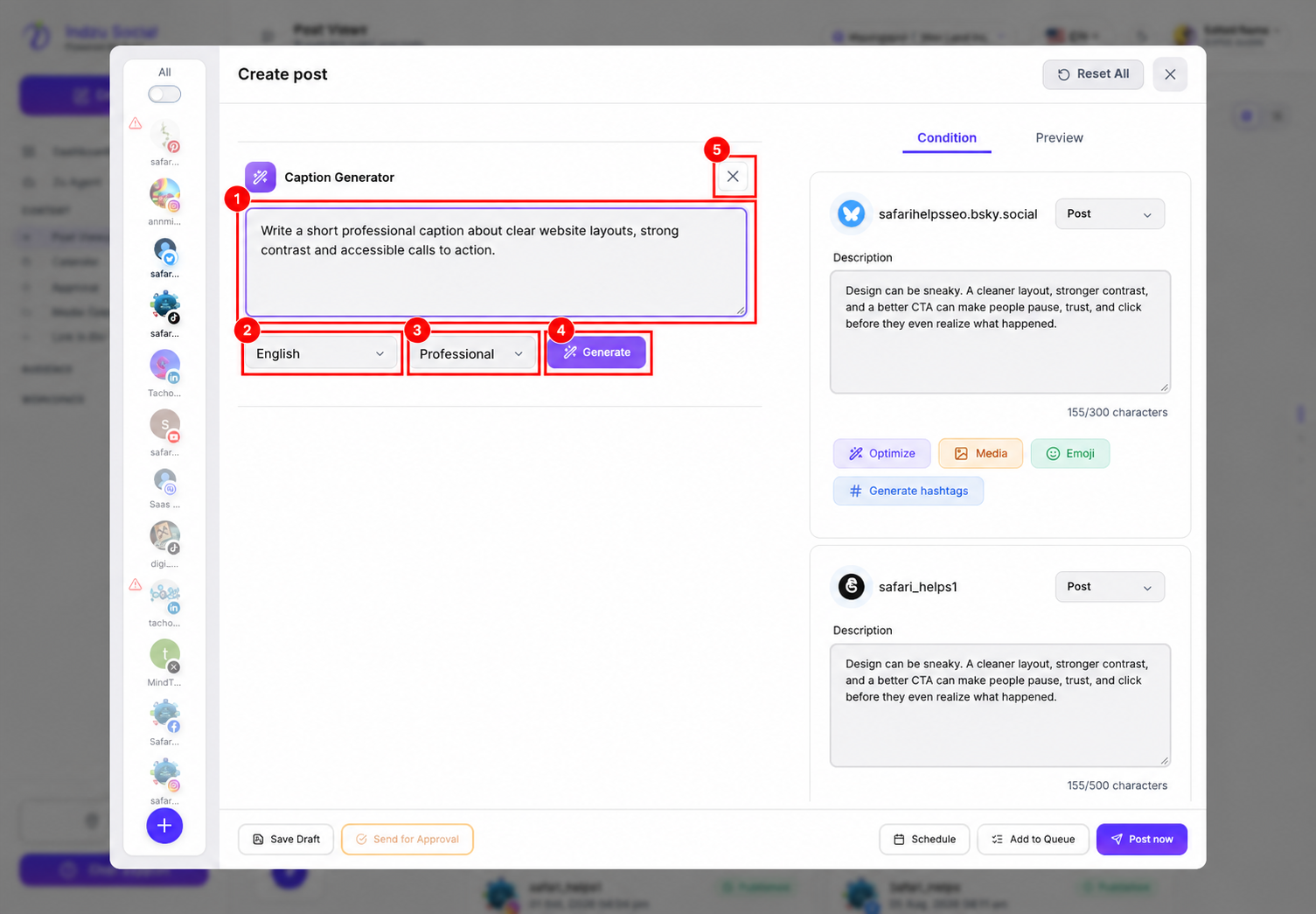
The screenshot shows a filled, unsaved example prompt—not a generated result. No AI generation was submitted to create this documentation screenshot.
Review and accept the result
When a result is available, review its accuracy, brand fit and suitability for the intended platforms. The current generator supports revision controls such as Rephrase, Shorten, Expand and Retry, and Accept to apply a chosen result. Additional generation/revision requests can depend on your account’s access and usage allowance.
Select Accept only for the text you intend to use. Then check each destination’s description and character counter under Condition, add any required media, and review Preview. Accepting a caption is not a publication action.
If the AI option is disabled or generation fails, review permissions, the displayed usage/credit restriction, the prompt requirements and any error message. Do not repeatedly retry without checking the cause.
See generating an image and caption and creating a new post.