Use the composer’s Emoji picker to insert an emoji into shared text, or use the Emoji control in a destination’s Condition panel for a channel-specific caption.
Add an emoji
- Open Compose, confirm the brand and select the intended usable channels.
- Enter your caption and place the cursor where you want the emoji.
- Select Emoji beneath the shared text box. Browse the categories or use Search in the picker.
- Select the desired emoji, then check its position in the text.
- If the emoji should appear only in one destination’s caption, use that destination’s Emoji control under Condition instead. Recheck the other destinations before publishing.
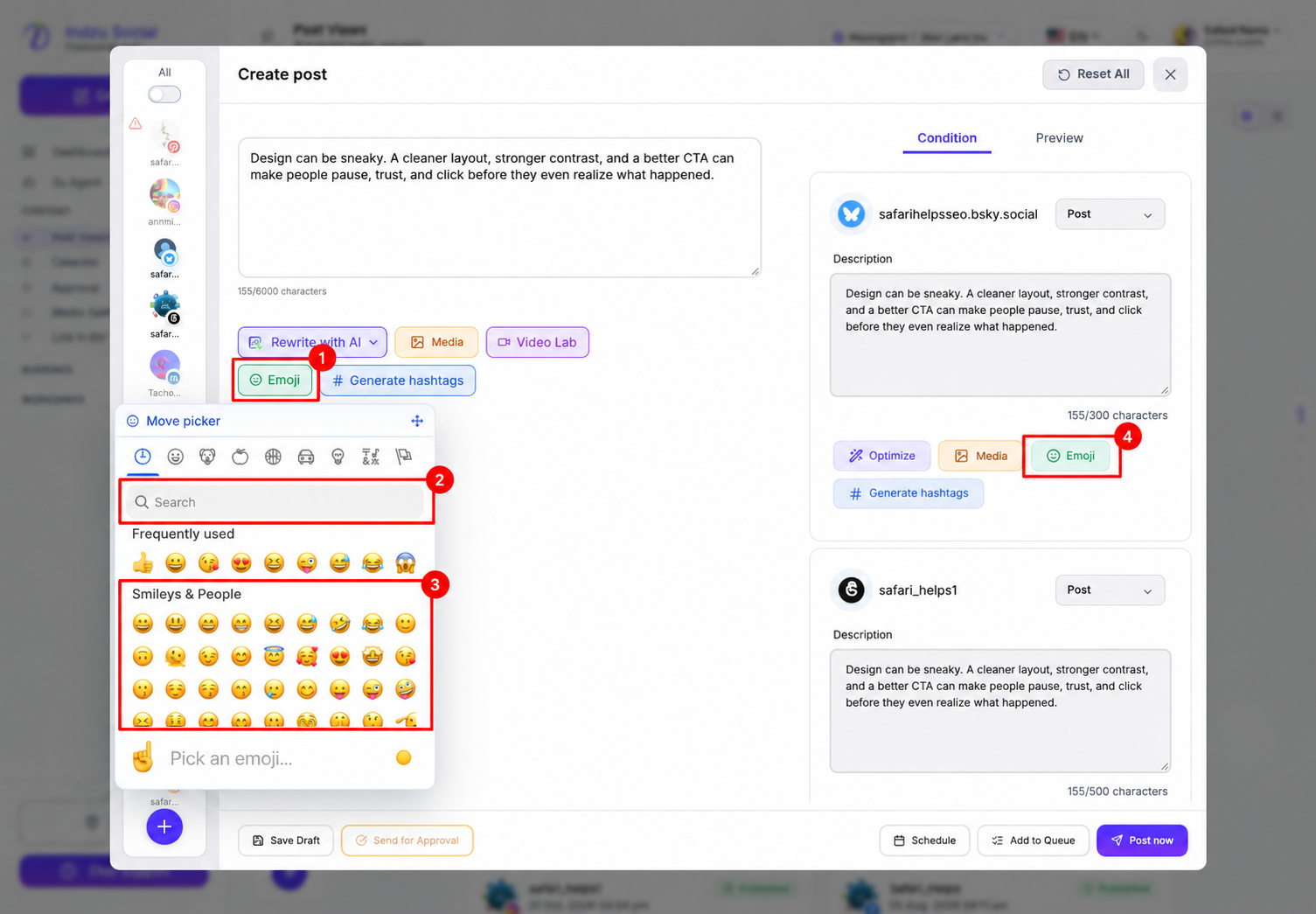
The screenshot shows the open picker over an unsaved, populated example. It does not show a submitted post.
Review before continuing
Check each destination’s character counter and Preview after inserting emojis. Emojis can affect counting and may render differently on different platforms or devices.
Choose Save Draft, Schedule, Add to Queue, Send for Approval when available, or Post now only after reviewing the final content. Adding an emoji alone does not save or publish a post.
See creating a new post and previewing a post.