The Dashboard is a top-level item in the left sidebar. You do not need to expand Content, Audience or Workspace to find it.
Open your brand’s Dashboard
- Sign in to your Indzu Social account.
- Click Dashboard in the left sidebar.
- Check the brand selector at the top. If needed, choose the brand you want to review.
- Use the date-range selector, such as Last 60 Days, to choose the period for the applicable activity and performance sections.
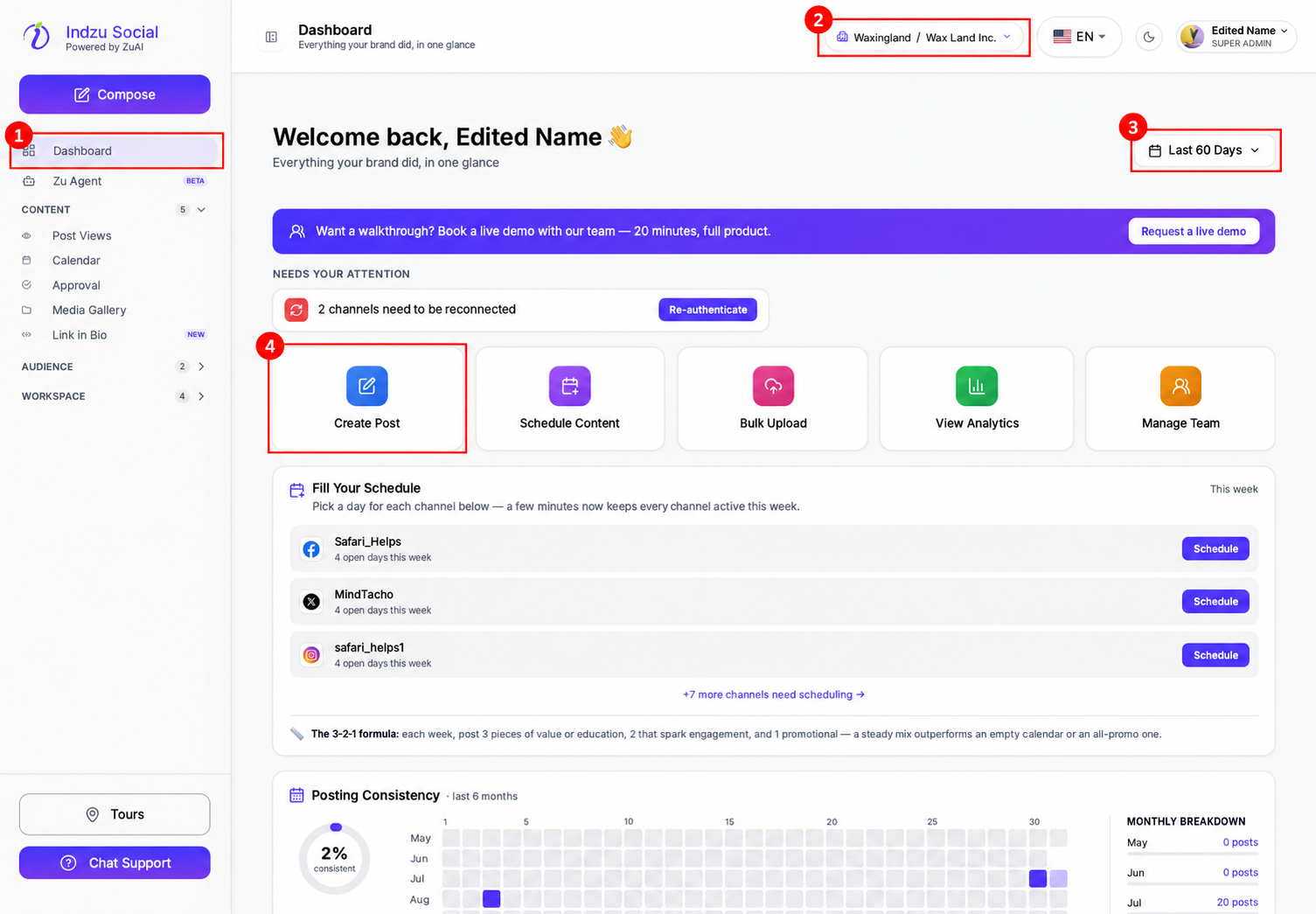
The page shows the selected brand’s activity and quick actions. Scroll down for performance, plan and AI credit sections. Some cards have their own periods: Posting Consistency shows its own multi-month window, while credit usage is not filtered by this Dashboard activity selector.
The default period can be shorter for a new organization. Longer periods may be disabled until the organization has enough history; choose an available period rather than assuming data is missing.
If the sidebar is collapsed, expand it using the sidebar toggle beside the page heading. If a brand is unavailable, confirm that you are signed in to the correct workspace and have access to that brand.
See What is the Dashboard? for a tour of its sections.