If your account has access to credit purchases, use Buy More in the Dashboard’s AI Credits card. Purchase controls may depend on your role and account configuration.
Open the top-up options
- Open Dashboard and scroll to AI Credits.
- Check your remaining balance and usage.
- Click Buy More.
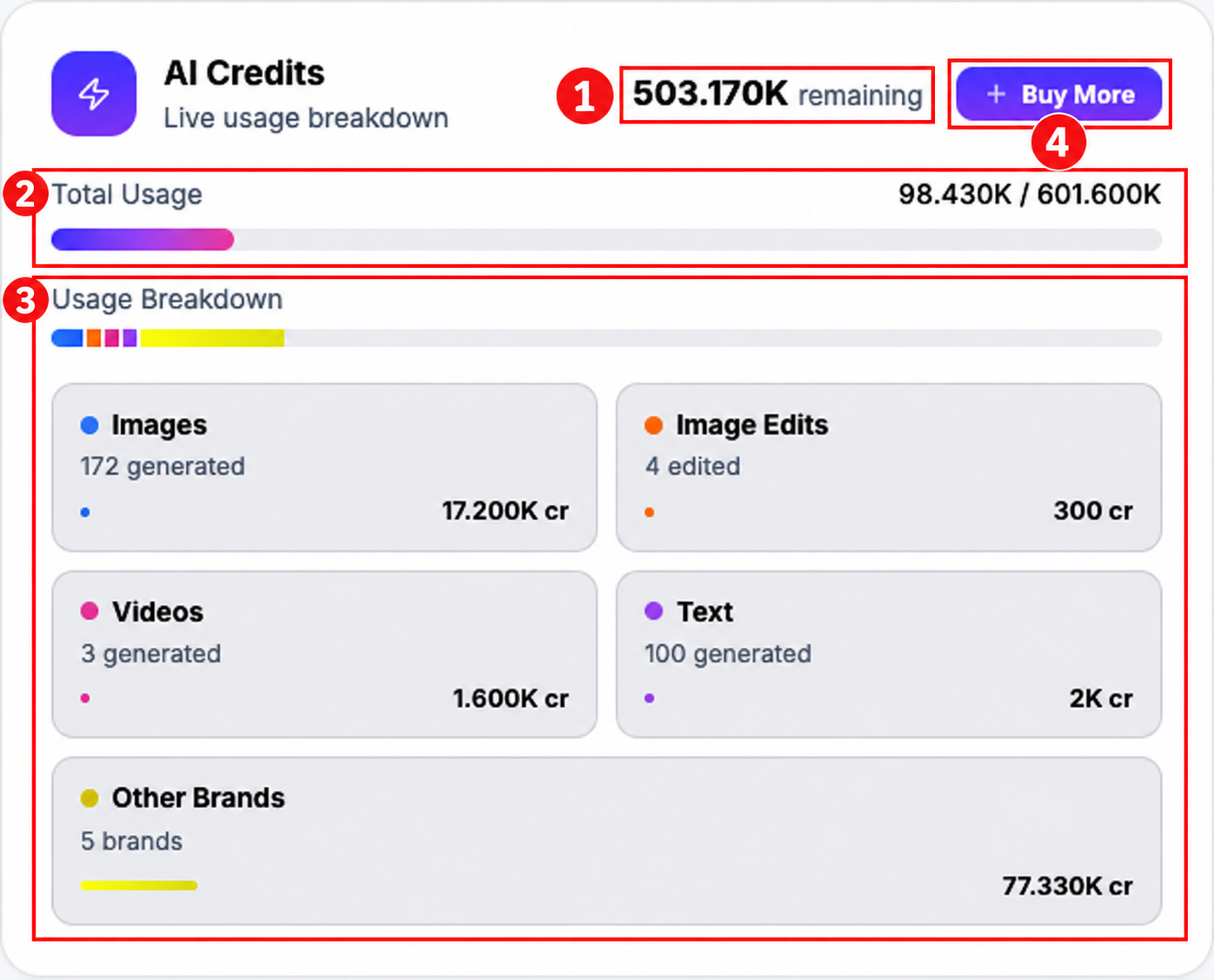
Review the quantity and price
- In AI credits topup, choose a quantity using the slider or quantity buttons.
- Review Total AI Credits and Total Price.
- Check the displayed price for your selected quantity before choosing Proceed to Payment.
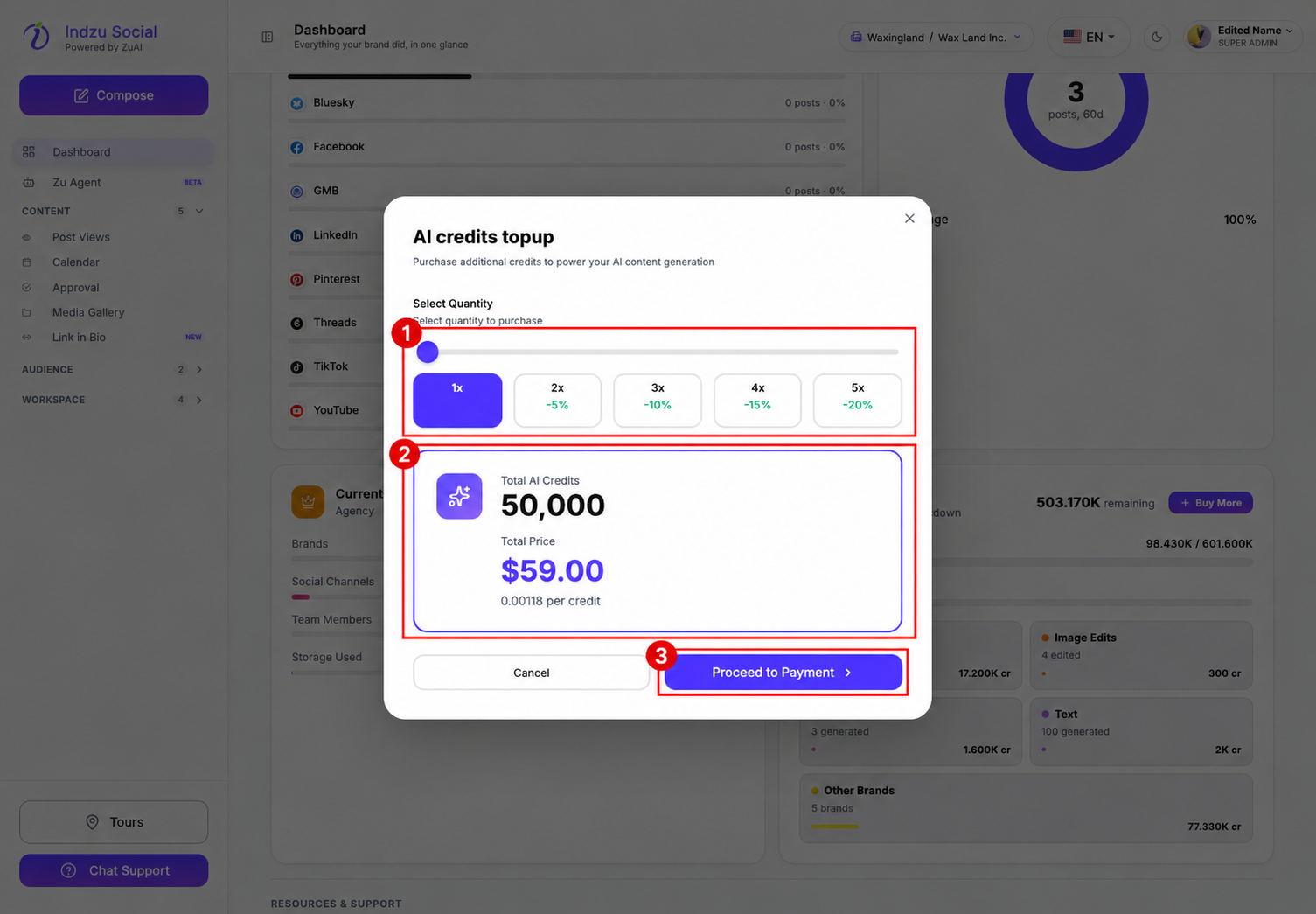
The screenshot is an example of the options displayed during review, not a price guarantee. Use the current amount shown in your account. Changing the quantity changes the credits and price.
Complete checkout only when ready
Follow the payment instructions presented after Proceed to Payment. Review the full payment summary and any terms before confirming a purchase. If you do not want to buy, choose Cancel or close the dialog.
After a successful payment confirmation, return to the Dashboard and check the remaining balance. If a confirmed purchase is not reflected, contact support with the receipt or transaction reference; do not immediately repeat the payment.
If Buy More is missing, ask your organization administrator to check purchase access. The documentation screenshots stop before checkout; no payment was submitted.
The Dashboard purchase button is available to administrators when credit add-ons are enabled for the account. A missing button does not by itself mean the remaining credit balance is zero.