Use the Dashboard for your remaining balance and usage breakdown. Use Workspace → Credit Usage for individual credit events.
Check your balance on the Dashboard
- Click Dashboard in the left sidebar.
- Check the selected brand at the top.
- Scroll to AI Credits.
- Read the remaining balance and Total Usage.
- Review Images, Image Edits, Videos, Text and Other Brands.
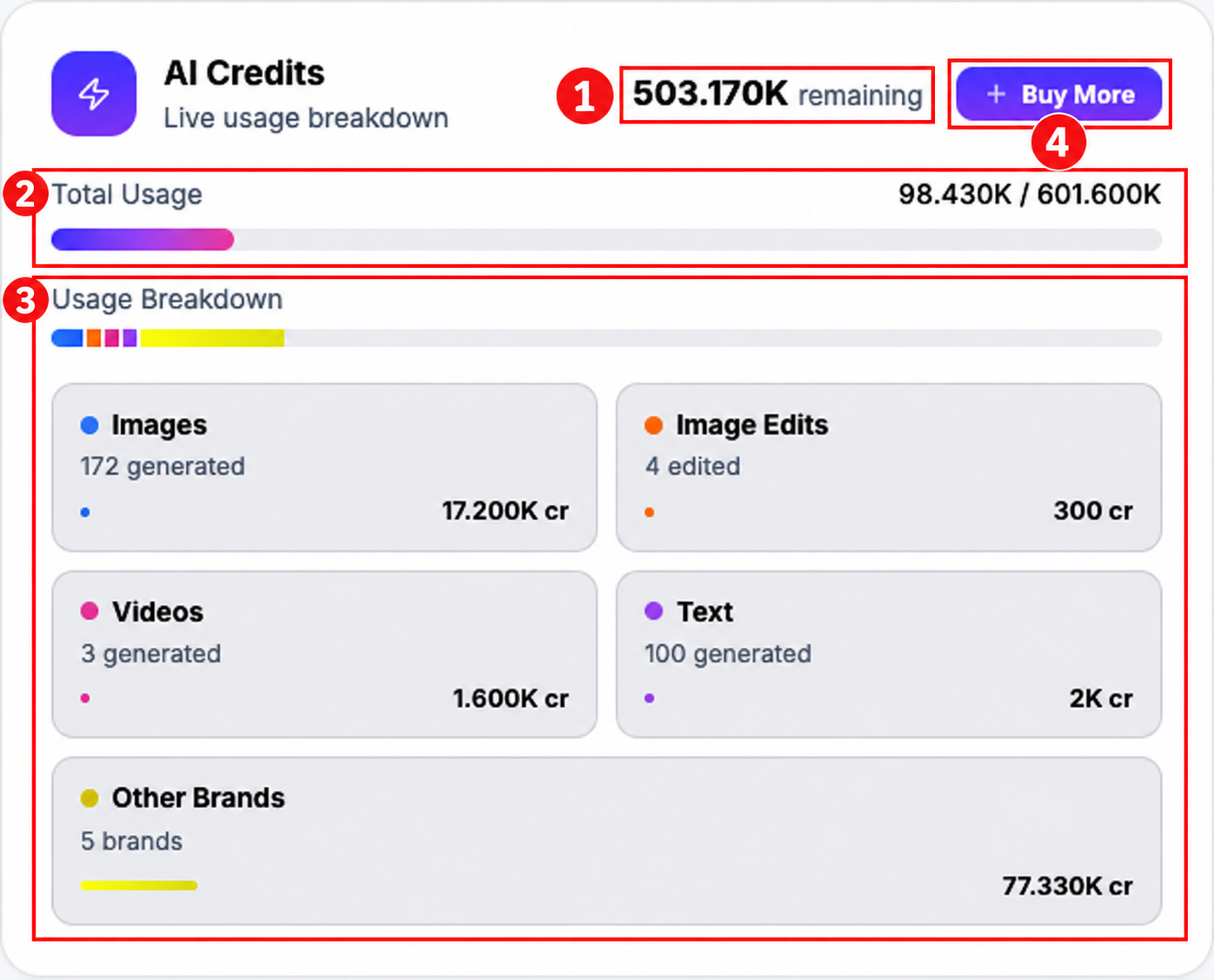
Credits are shared across the organization. The breakdown attributes usage to the selected brand and other brands; switching brands does not create a separate credit allowance.
Other Brands can include usage that is not attributed to the displayed image, image-edit, video and text counts. The bucket is a summary; use individual credit events to investigate a particular deduction.
K means thousand. For example, 503.170K means 503,170 credits. In the screenshot, 98,430 used out of 601,600 total leaves 503,170 remaining. Your account will show its own values.
Inspect individual events
- Expand Workspace and click Credit Usage.
- Confirm the brand and choose a period, such as Last 90 days.
- Review the summary cards and usage chart for that period.
- Use All actions to filter the event list.
- Check each event’s Date, Action, Type and Credits. Scroll down for pagination when needed.
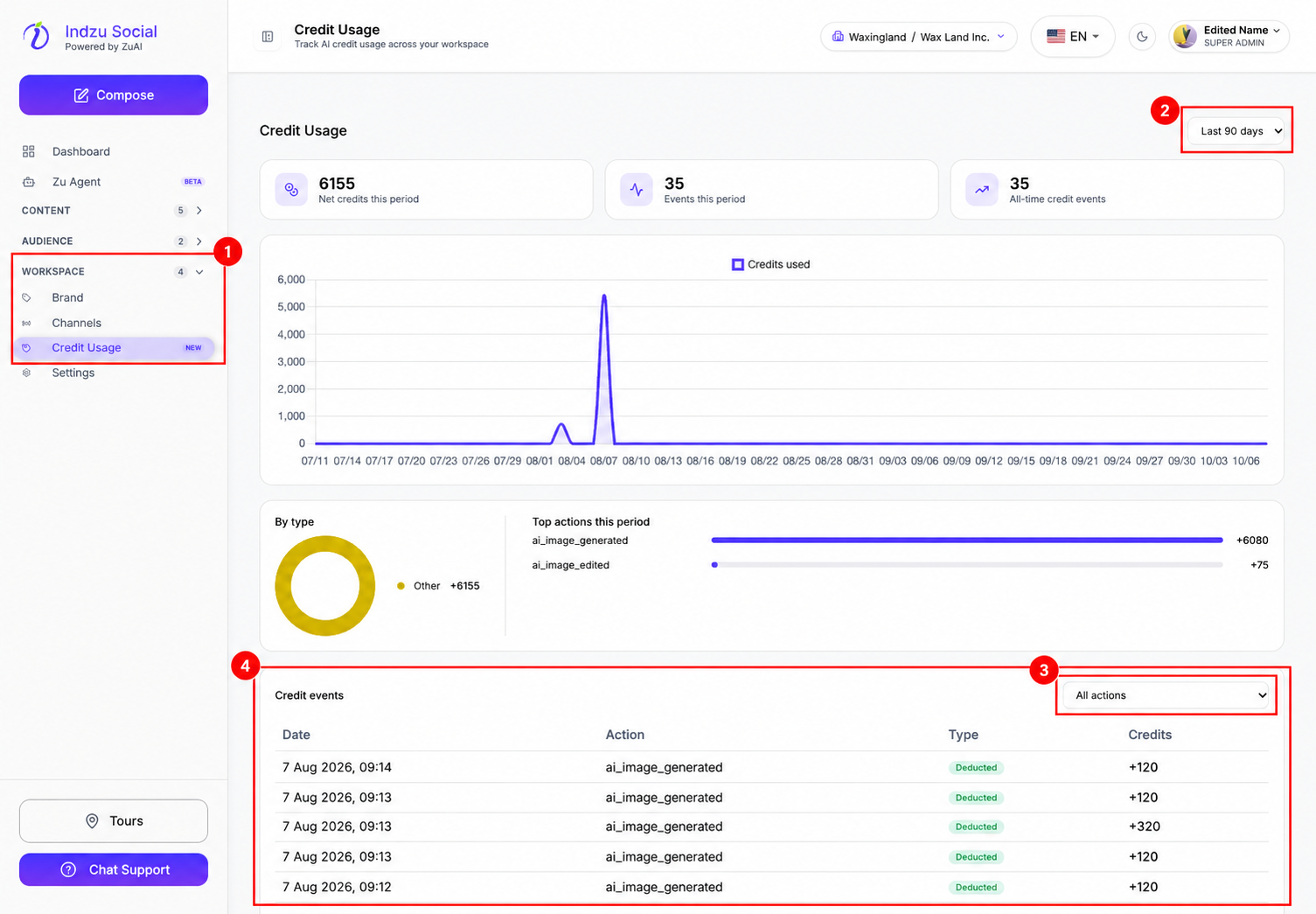
Read the event type, not just the amount’s sign. A positive amount beside Deducted still represents a deduction. Refund events, where available, have their own type.
The period summary and all-time event count answer different questions. Neither should be treated as your remaining balance. If a recent period has no usage, choose an appropriate longer period or inspect another brand rather than assuming the account has never used credits.
Need more credits or help?
Use Buy More if available to your role, and review the current purchase summary before paying. For an unexpected charge, note the brand, action, date/time and amount when contacting support.
See Buy more AI credits and Understand AI credit deductions.