A posting queue is a saved weekly schedule. Instead of choosing a date manually for every post, you add ready content to a queue and Indzu finds the next available slot.
Before you start
Select the correct brand and connect the channels you want to use under Workspace → Channels. Queue availability and the number of queues depend on your plan and permissions. Check the brand’s time zone under Workspace → Brand → Settings before setting posting times.
Create a queue
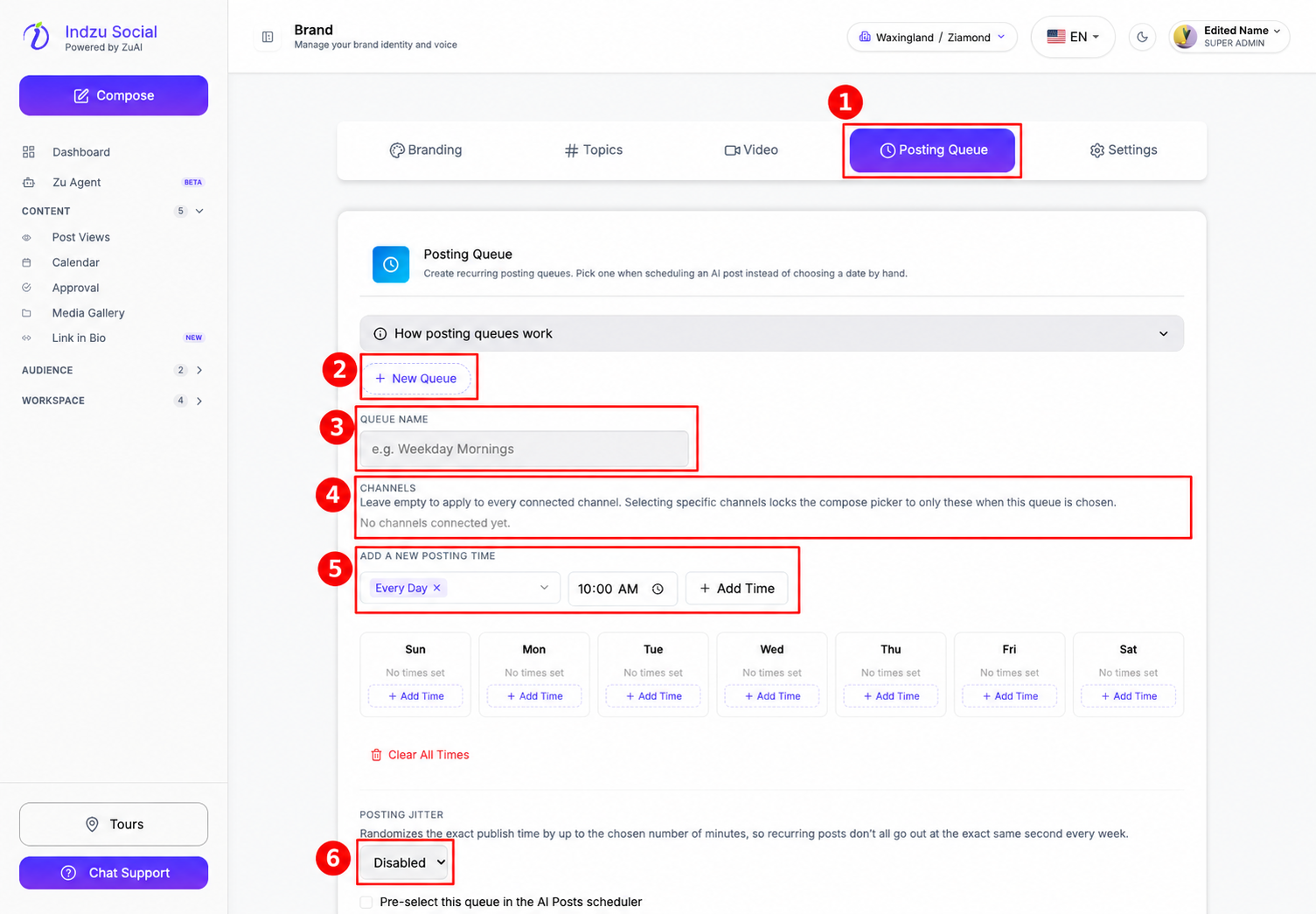
- Expand Workspace in the sidebar and select Brand.
- Open the Posting Queue tab and select New Queue.
- Enter a clear Queue name, such as Weekday Mornings.
- Review Channels and choose the connected channels this queue should use. If the editor says No channels connected yet, connect a channel first.
- Under Add a new posting time, choose the days and time, then select Add Time. Repeat for additional slots. Check the day cards to confirm the times have been added.
Choose queue options and save
- Leave Posting Jitter disabled for fixed slot times, or enable it and choose a maximum number of minutes for a small random timing variation. Check the actual preview when scheduling a post.
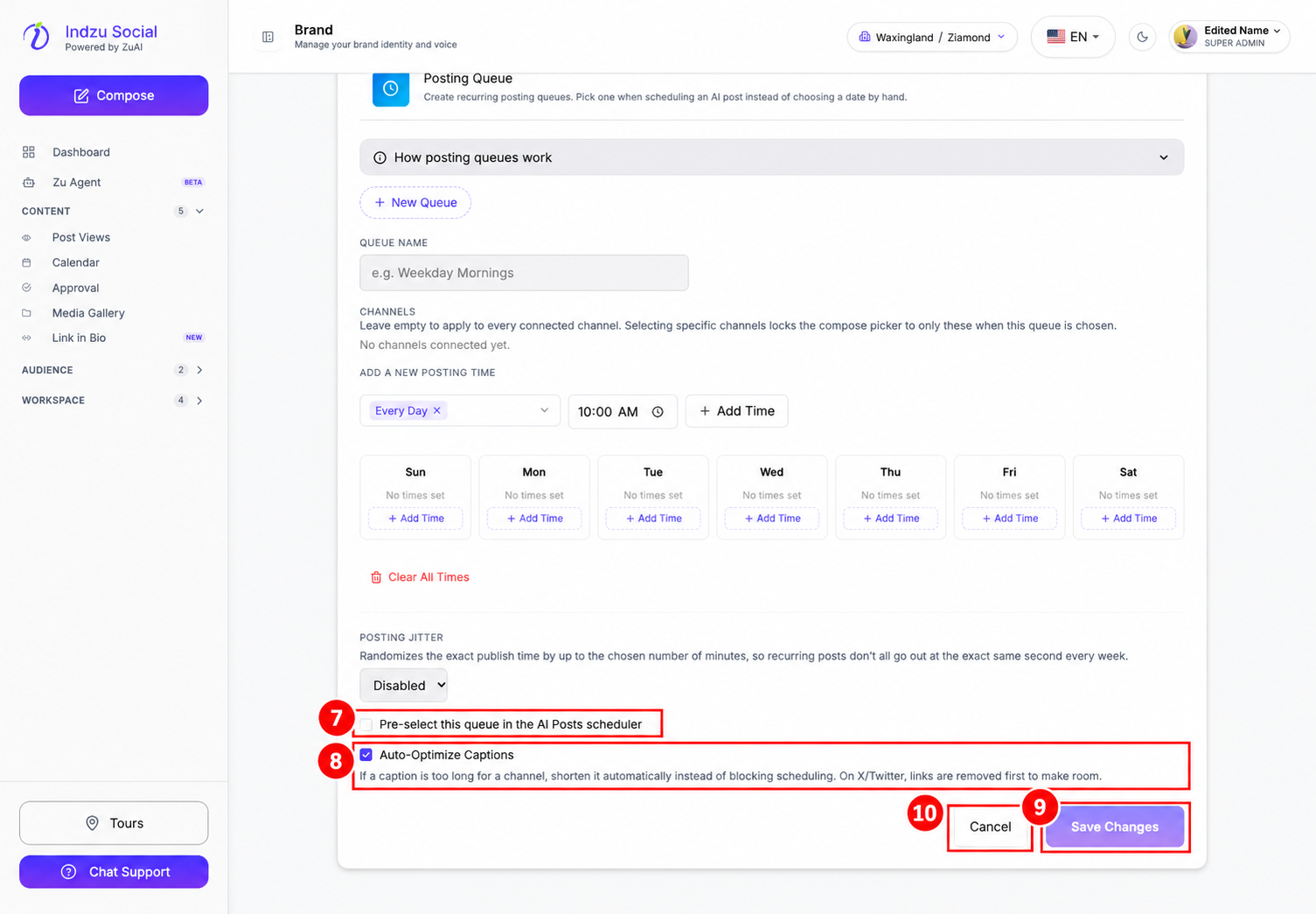
- Enable Pre-select this queue in the AI Posts scheduler if you want it selected by default. Only one queue can be the default.
- Review Auto-Optimize Captions. When enabled, overlong captions can be shortened to fit channel limits; on X/Twitter, links are removed first. Review important wording and links before confirming scheduling.
- Select Save Changes. Creating a schedule alone does not generate content or publish posts; add ready posts to the queue separately.
Edit or delete a queue
Select the saved queue in the Posting Queue tab, change its settings, and select Save Changes. Use Cancel to abandon unsaved edits. To remove a saved queue, select Delete Queue and review the confirmation before proceeding.
Deleting a queue does not cancel posts already scheduled through it: they keep their assigned times. Manage those posts in Content → Post Views → Scheduled or Content → Calendar.
If a slot is occupied by a queue sharing the same channel, Indzu uses the next available slot. Open How posting queues work in the editor for the built-in explanation.