Open Content → Post Views → AI Posts → AI Studio and select Videos. Choose Informative Video, UGC Video, or Short Promotional Video depending on your goal.
Informative Video
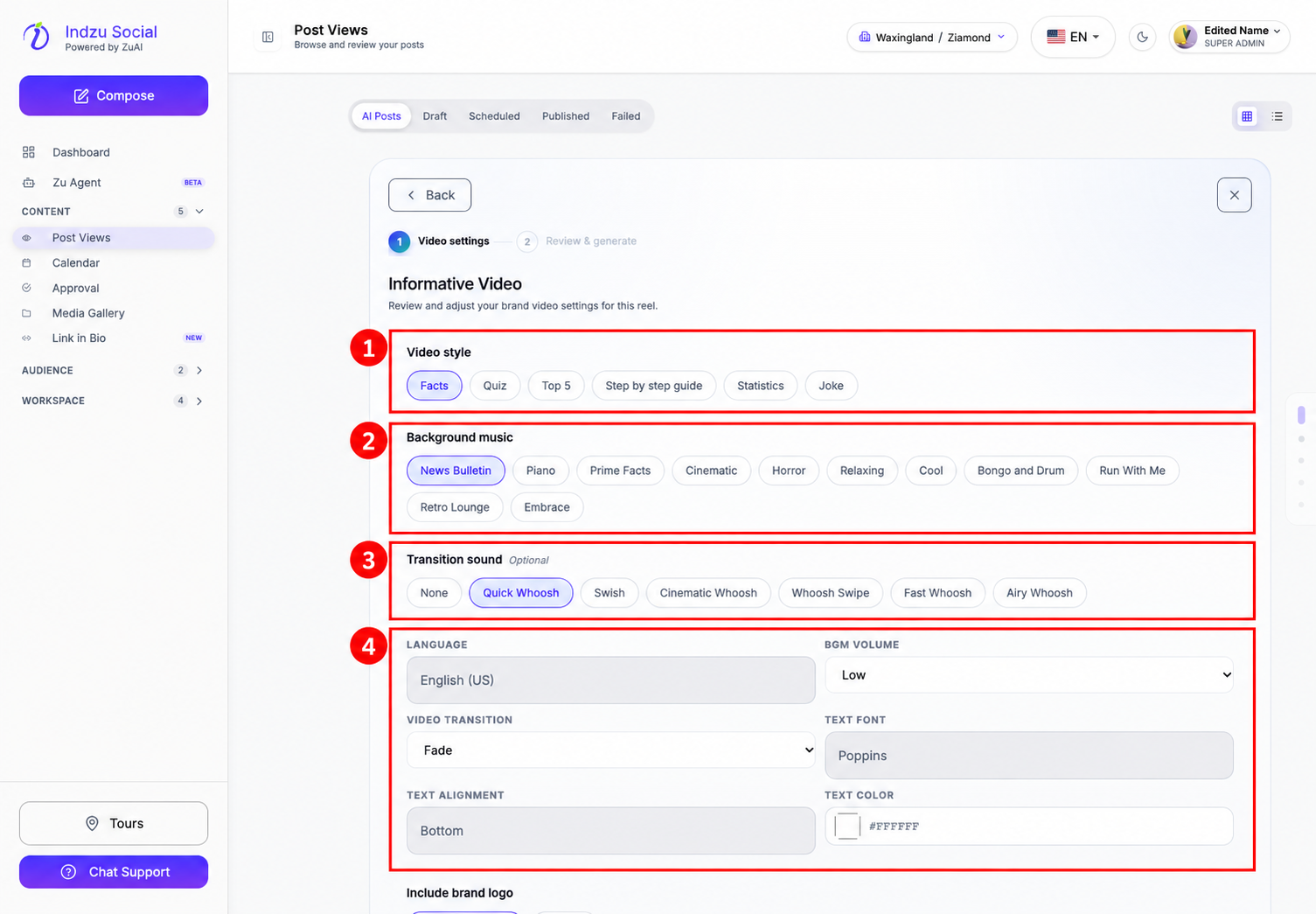
- Select Informative Video.
- Choose the Video style, such as Facts, Quiz, Top 5, Step by step guide, Statistics, or Joke.
- Select Background music and an optional Transition sound.
- Review the language, BGM volume, video transition, text font, alignment, and colour. Some values are inherited or read-only; use More settings → for the broader brand video settings when needed.
- Scroll down to choose whether to include the brand logo and select the AI Voice.
- Select Continue to reach Review & generate. Check the details and estimated AI credits, then confirm generation when ready.
UGC Video
- Select UGC Video and the available product-URL starting point. A choice marked Coming soon is not available for generation.
- Enter the product URL and select Fetch product details.
- Verify the product details and select the reference image requested by the form.
- Continue to the avatar and style step. Choose the avatar, tone/focus, and the available duration and language options.
- Review the details and credit estimate before confirming generation.
Short Promotional Video
- Select Short Promotional Video.
- Start from a product URL or an uploaded image. For a URL, fetch and verify the product details. For an image, upload the asset and complete the details manually.
- Check the product title, description, price, offer details, caption language, and any special instructions shown in the form.
- Continue to the review step, check the credit estimate, and confirm generation when ready.
Wait for the result in AI Posts, then review the video and caption before scheduling. Generating a video uses AI credits; it does not publish it automatically. Available choices and credit requirements can vary by workflow and plan.