Use Product Photo Shoot to create product imagery from an existing product image and a scene brief. A clear source image helps the AI preserve the product’s appearance.
Add the product
- Open Content → Post Views → AI Posts → AI Studio → Product Photo Shoot.
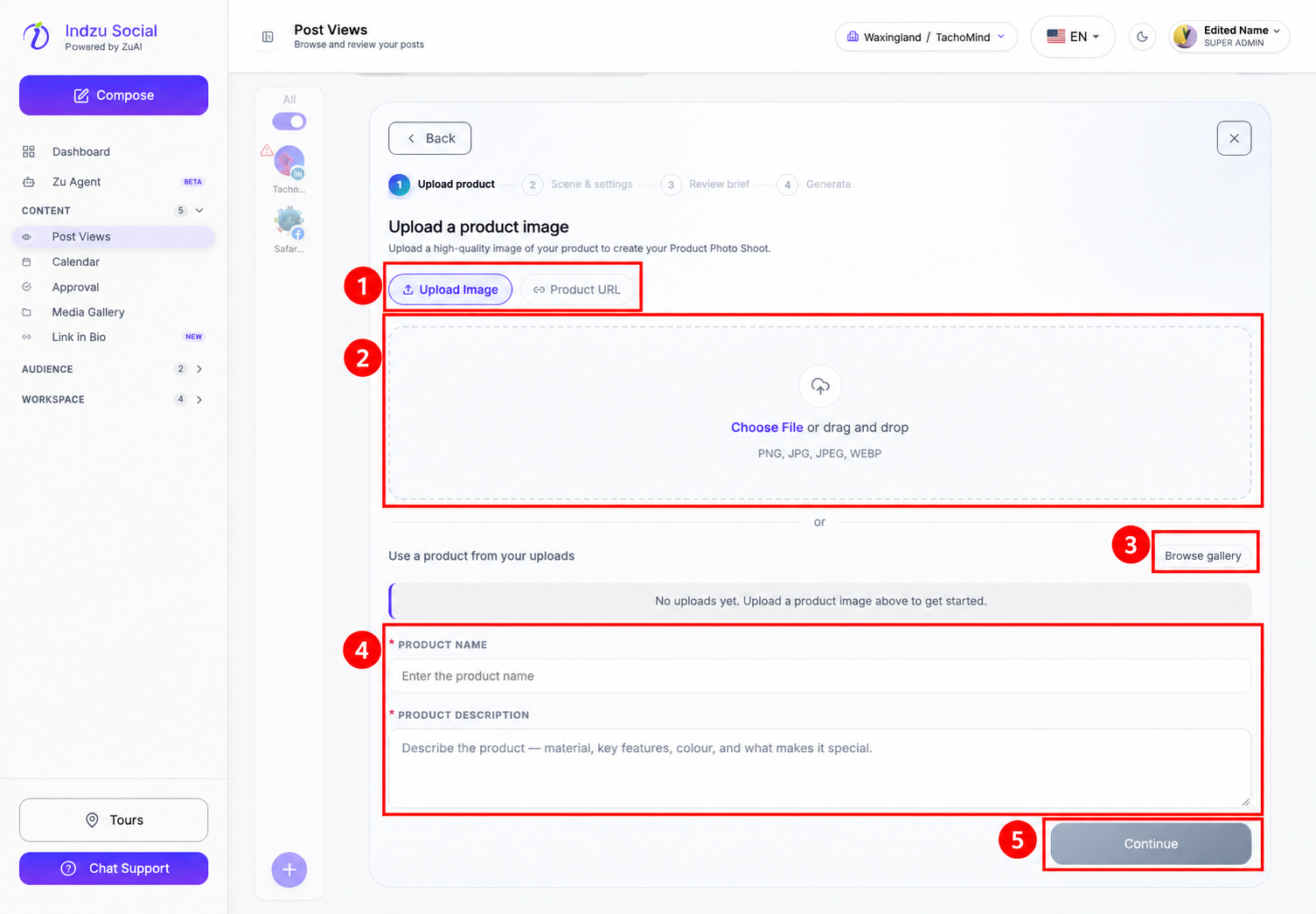
- Use Upload Image to choose a PNG, JPG, JPEG, or WEBP file, or select Browse gallery for an existing image. Alternatively, choose Product URL, fetch the details, and select the required product image.
- Complete the required Product name and Product description. Include useful facts such as material, color, key features, and distinctive details.
- Select Continue after the image and required details are present.
Choose the scene and refine the brief
- In Scene & settings, choose a scene, such as Studio, Lifestyle, Element, Artificial, or Flat Lay, from the available cards.
- Review the aspect ratio and other creative settings. Add instructions about lighting, background, composition, or details that must remain unchanged.
- Continue to Review brief. Read and edit the photoshoot prompt so it accurately describes your intended result.
- Continue to the final review, check the estimated AI credit usage and balance, and select Generate only when ready.
Check the result
Review the generated image in AI Posts before using it. Check the product’s shape, color, label, packaging, and proportions against the source. AI imagery may alter product details; do not publish misleading product representations.
If Continue is unavailable, check that a product image is selected and both required text fields are complete. The screenshot’s disabled Continue button illustrates an unfinished form, not a generation error.
Related guides
See editing generated posts and edit credits, checking AI Credits, and adding AI posts to a queue.