Use Special Occasion and Festivals to create a brand-relevant image for a holiday, festival, or custom occasion.
Choose an occasion
- Open Content → Post Views → AI Posts → AI Studio.
- Select Special Occasion and Festivals.
- Choose Select an occasion to browse upcoming holidays for a region, or From idea to enter an occasion yourself.
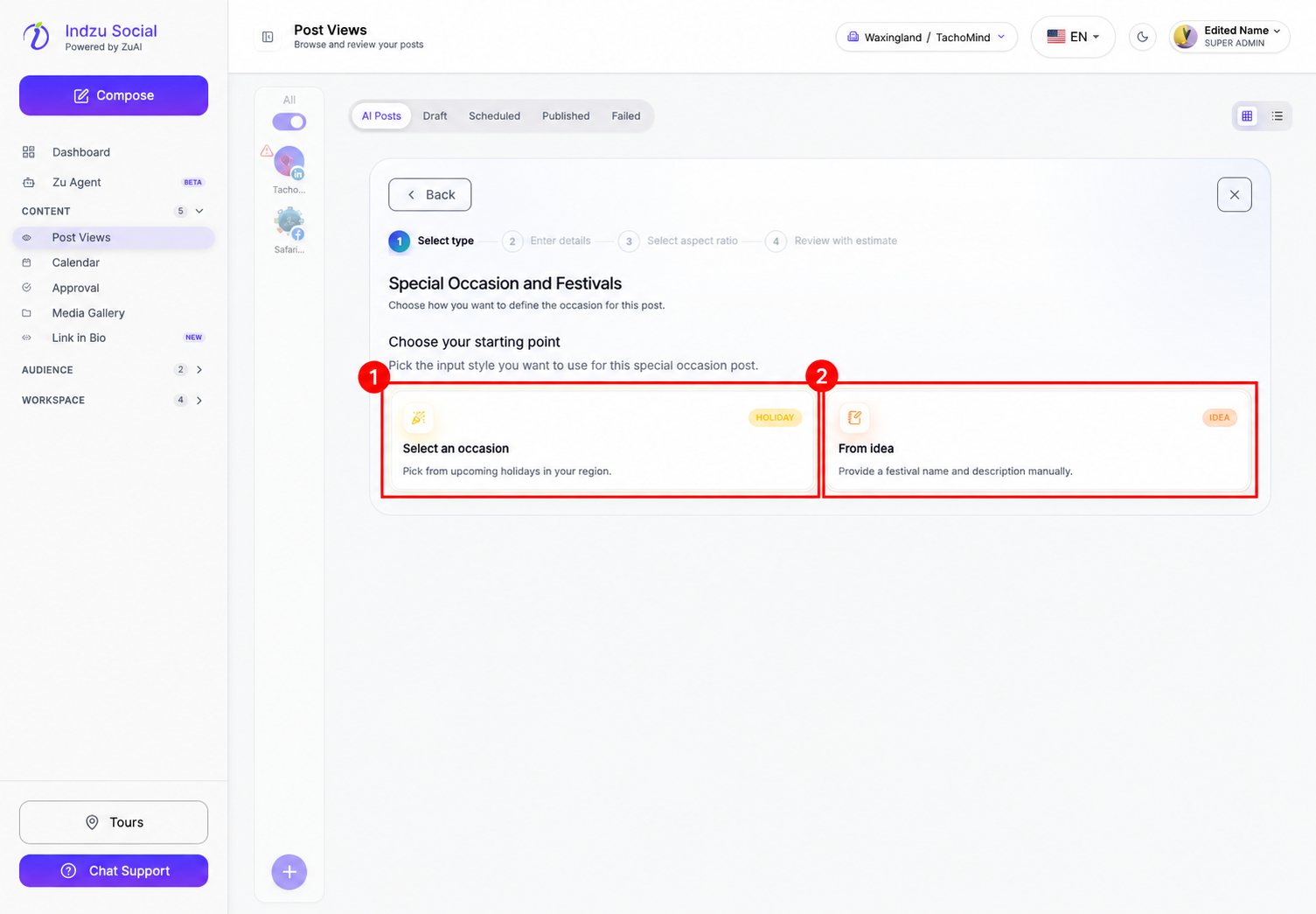
Complete the details
- For Select an occasion, check the region and choose the relevant holiday. Verify the date and local relevance before using it.
- For From idea, enter the required Festival name and Description. Explain the occasion, audience, greeting or message, and any brand connection.
- Select Continue to set the aspect ratio. Review the language, audience, instructions, and available brand styling controls.
- Select Review estimate and check the credit cost and balance. Return to earlier steps if the brief needs changes.
- Select Generate only when ready. Review the generated image and caption in AI Posts.
If the occasion is missing from the holiday list, go back and use From idea. Check names, dates, symbols, and cultural context in the output; do not assume AI-generated text is correct.
Generating an occasion post does not schedule it for the holiday. Use the composer or a posting queue separately, and check that the proposed date and time match the occasion.
Related guides
See adding AI posts to a posting queue, editing generated posts, and checking AI Credits.