Use Informative Carousel Post to build an educational carousel with editable text, slide images, and consistent styling. Start editing immediately or use AI to draft slide content.
Open the editor
- Open Content → Post Views → AI Posts → AI Studio.
- Select Informative Carousel Post.
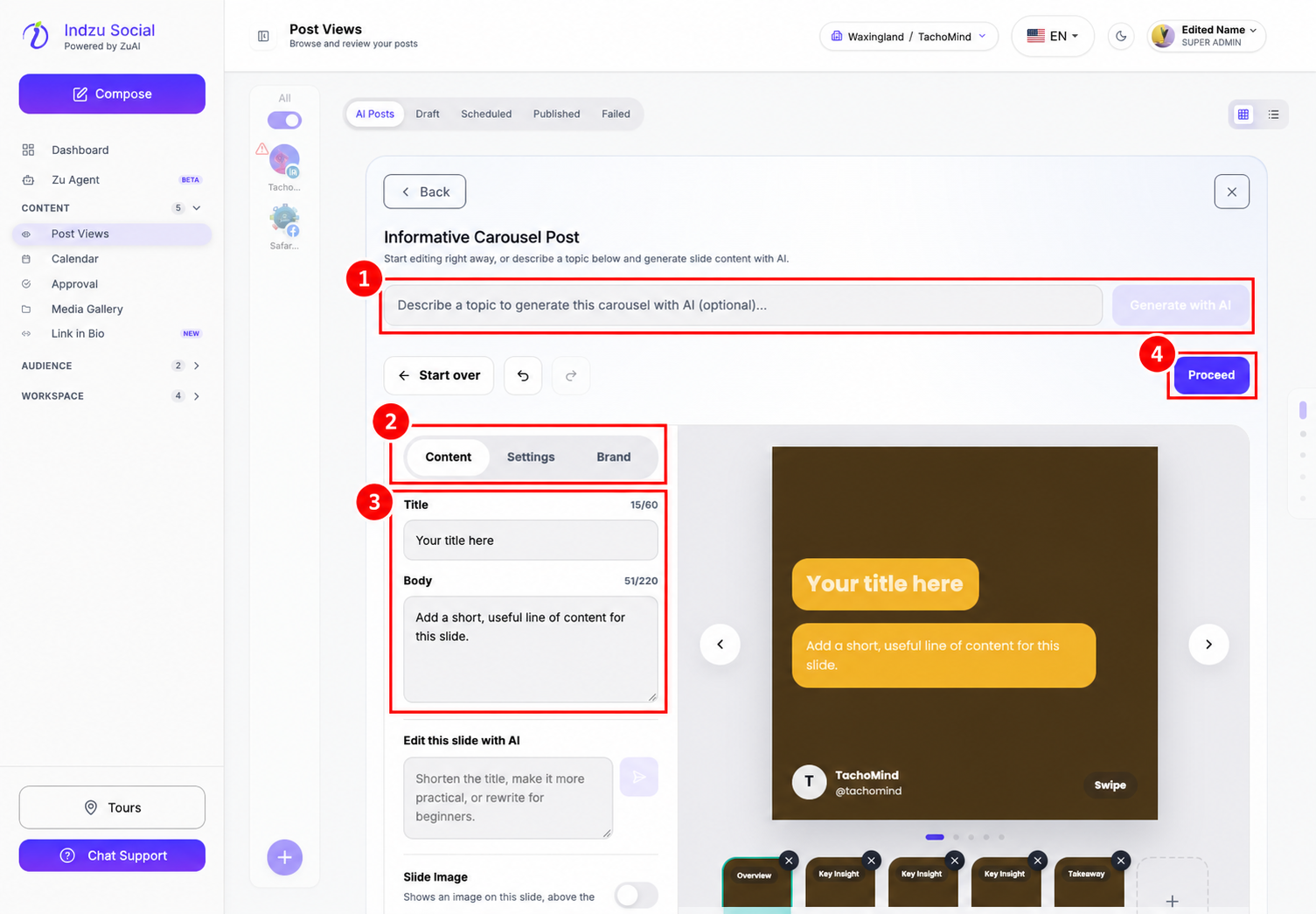
- The editor opens with five placeholder slides. Replace them with your own content, or enter a topic in the optional prompt and select Generate with AI. AI generation and rewrites use credits.
Edit and style the slides
- Select a slide thumbnail. In Content, edit its Title and Body. Keep within the displayed limits: 60 characters for the title and 220 for the body.
- Use Add to insert a slide, or remove an unwanted slide. The editor supports 3–15 slides. Drag thumbnails to change their order.
- Scroll through Content to add a slide image, a shared background image, or a caption. Use images you have permission to publish.
- Open Settings to choose Square, Portrait, or Story format, page numbering, swipe hints, and profile visibility.
- Open Brand to adjust the color theme, fonts, text sizes, alignment, name, and LinkedIn handle. Check the preview for readability and overflow.
Review the cost and generate
- Select Proceed to open Review with estimate.
- Check the slide count, format, estimated credits, available balance, and remaining balance. Rendering slides has a credit cost even when you wrote their text manually. If the caption is empty, the estimate includes AI caption generation.
- Go back if anything needs changing. Select Generate only when ready to render and save the carousel to AI Posts.
- Review the saved result before composing, publishing, or scheduling it. Generation alone does not publish it.
The AI Studio card may describe three slides, but the current editor starts with five editable slides; use the editor’s actual count.
Related guides
See available AI Studio workflows, AI Credit balance and usage, and editing generated posts and edit credits.