Use Carousel Images to generate a multi-image post from an idea, saved brand topic, URL, or image. For an educational carousel with an editable slide-by-slide layout, use Informative Carousel Post instead.
Choose your starting point
- Open Content → Post Views → AI Posts and check the selected brand.
- Select AI Studio → Carousel Images.
- Choose Write your idea, From brand topic, Product URL, Product Image, From blog link, From page link, or From image.
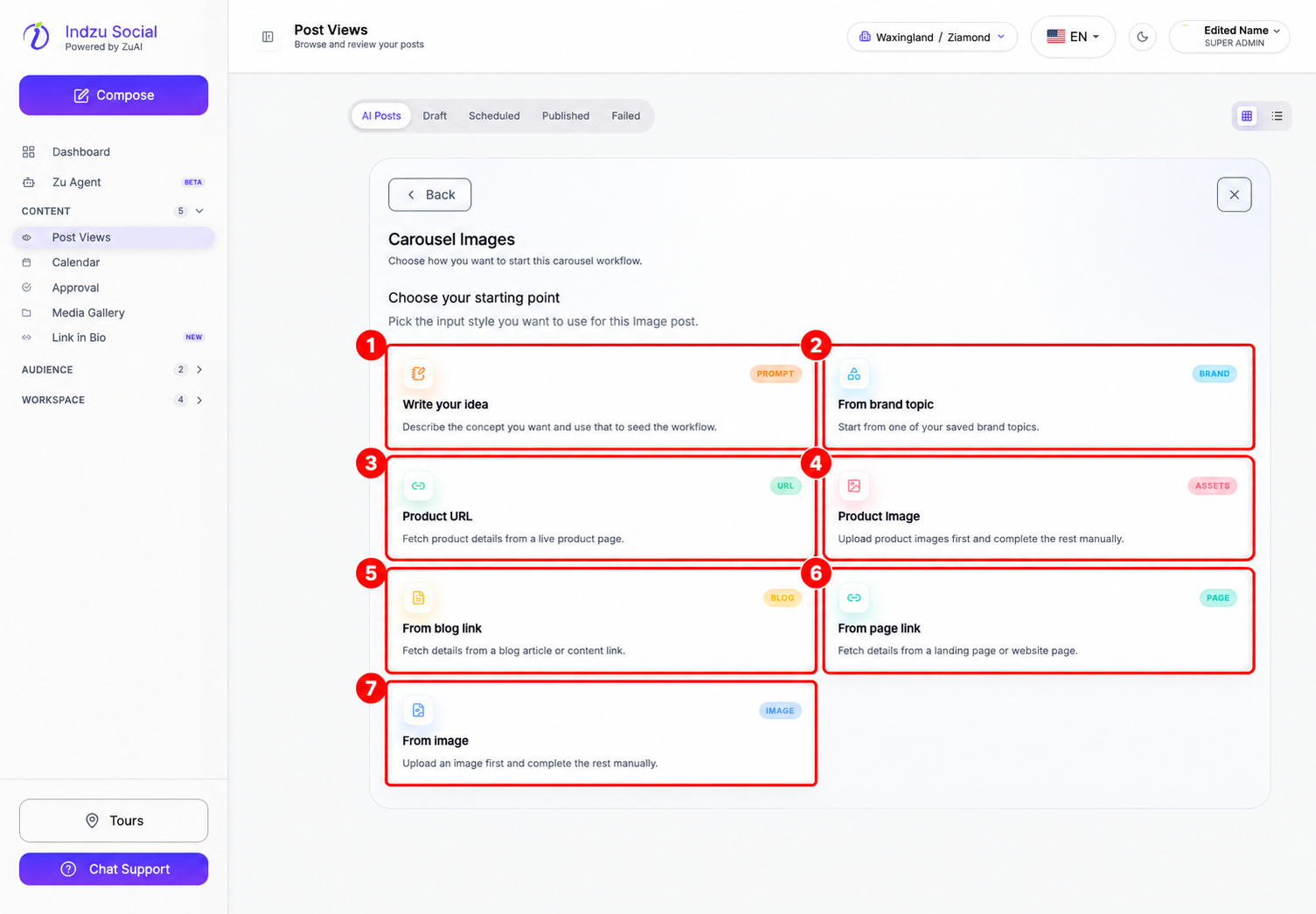
Complete the source details
- For Write your idea, describe the topic, intended audience, and what the carousel should explain. Follow the minimum character count shown on screen.
- For a brand topic, select a saved topic and the requested style. For Product URL, fetch and review the product name and description, then select the required images. Other URL and image routes show their own required fields.
- Select Continue after completing the inputs.
Set up the carousel
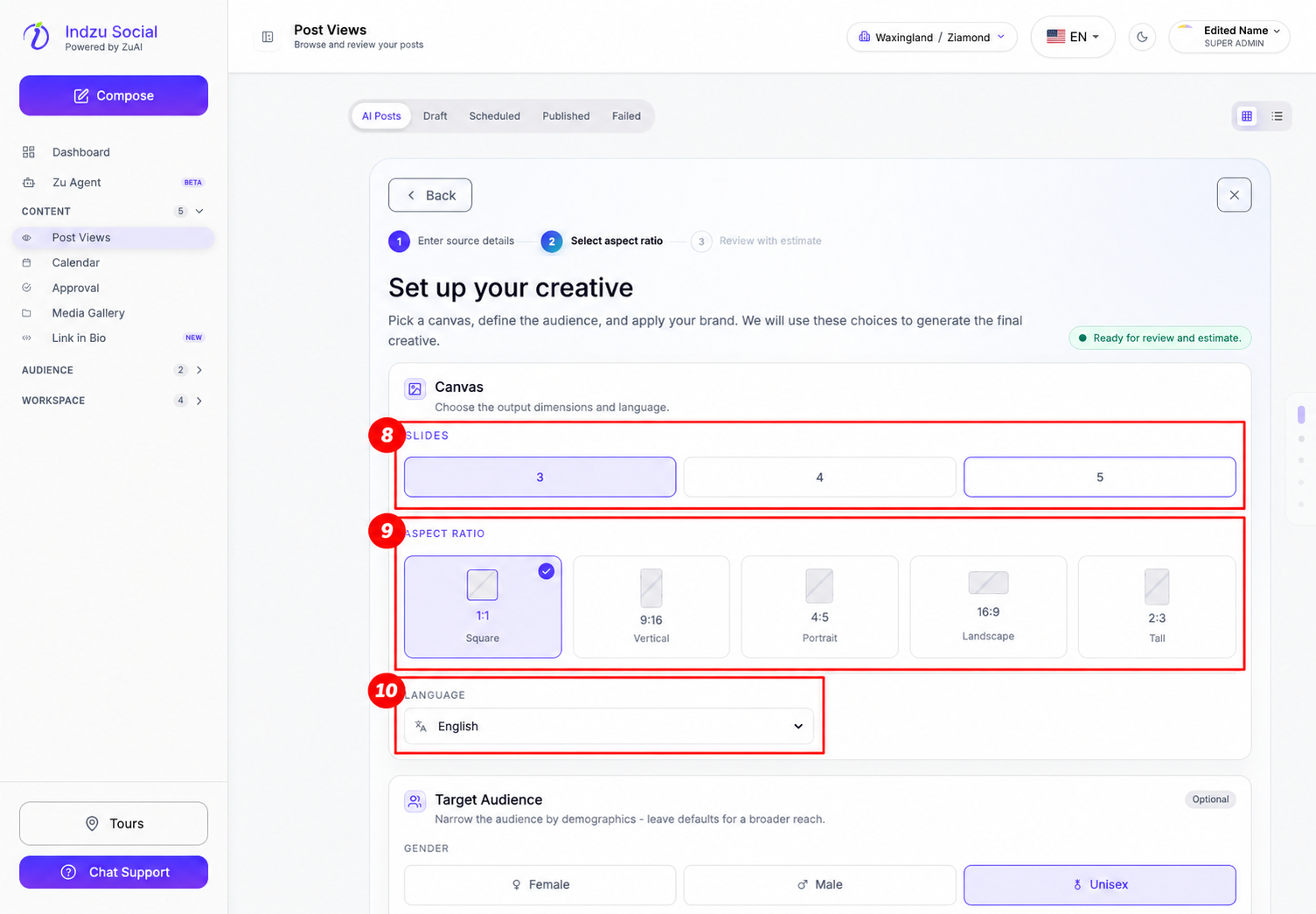
- Choose 3, 4, or 5 slides in the Slides selector.
- Choose an Aspect ratio and Language. Add audience preferences and special instructions if needed.
- Scroll down to review the brand styling, logo, and contact-strip choices.
- Select Review estimate and check the estimated credits and available balance.
Select Generate only when the inputs and estimate are correct. Generation uses AI credits; it does not publish the carousel. Review the resulting media and caption in AI Posts before scheduling.
Related guides
Read How do I create an Informative Carousel Post?, check your AI Credit balance and usage, or add AI posts to a posting queue.