Use a posting queue to assign ready AI content to recurring slots without choosing each date manually. You need connected, active channels and a saved queue with at least one posting time.
Prepare your queue
- Open Workspace → Brand → Posting Queue.
- Create or select a queue and check its channels and weekly time slots. Save any changes.
- Confirm the brand’s time zone under Brand → Settings. Reconnect expired channels under Workspace → Channels if necessary.
If you have not set up a queue yet, follow How do I create and manage a posting queue? first.
Add several AI posts together
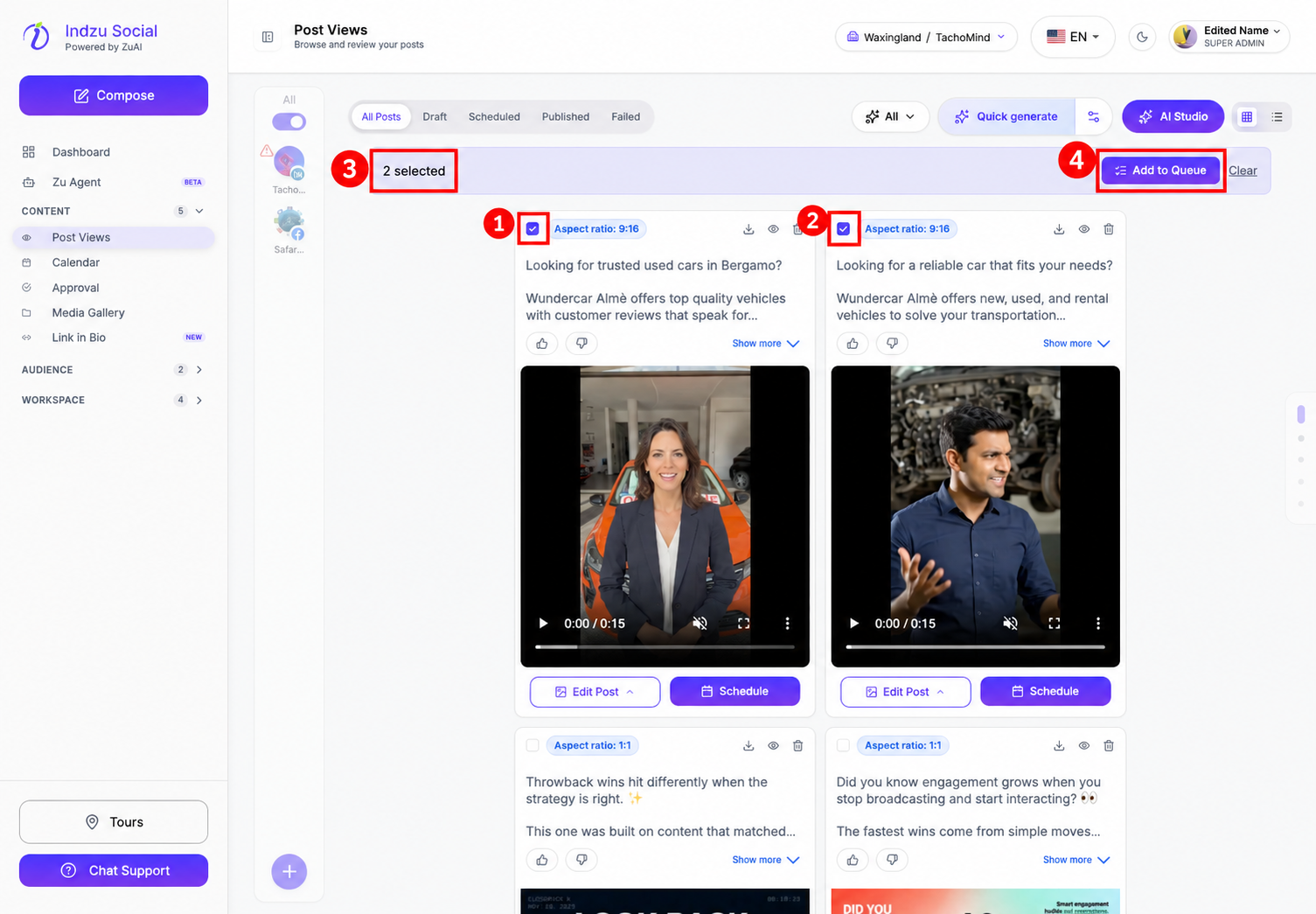
- Open Content → Post Views → AI Posts and check the selected brand.
- Review the generated items and select the checkbox at the top-left of each ready post card. Check any existing published/scheduled status so you do not unintentionally schedule the same content again.
- The selection toolbar appears above the cards. Check its selected-post count, then select Add to Queue. In this example, two generated video posts are selected.
- In Bulk Schedule via Posting Queue, check the selected post summaries on the left and choose a queue on the right. The default queue may be pre-selected. Review the queue’s channels, slots per week, and highlighted posting days.
- Leave the order unchanged or enable Shuffle order before scheduling if you want the selected items mixed.
- Resolve every validation warning. Use Fix it to correct the affected content or Skip this channel to exclude that post/channel combination. Skipping a channel means that combination will not be scheduled.
- Review Will post at and the ready-post status. Each selected post fills the next available slot; it is not necessary for them to share the same date. The example below previews two different dates, and Schedule 2 post(s) reflects the two selected posts. These are example preview times, not a completed scheduling result.
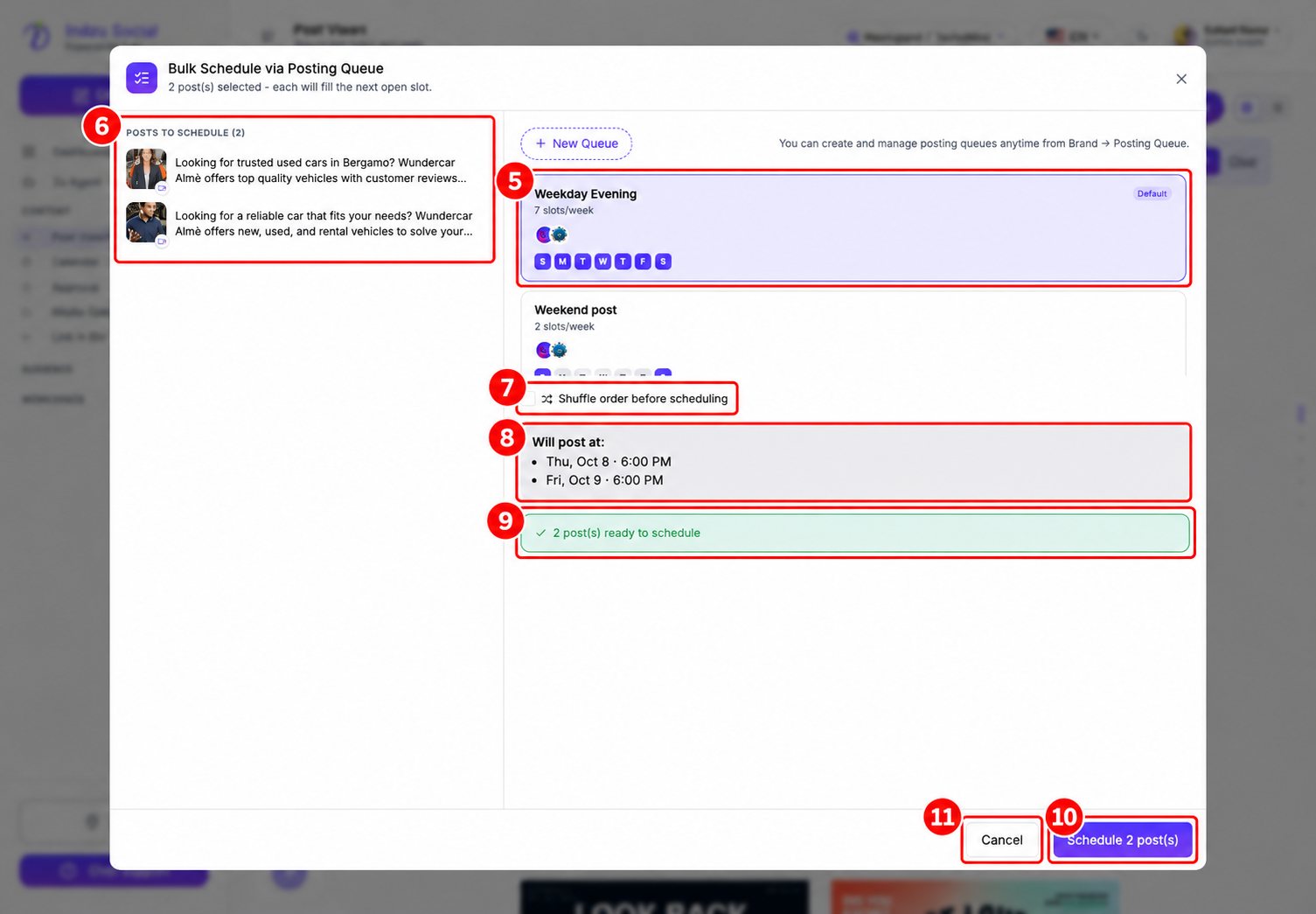
- Select Schedule [count] post(s) only when the content, channels, times, and final ready-post count are correct. Select Cancel to leave without scheduling.
- After a successful scheduling confirmation, check the resulting posts in Post Views → Scheduled or Content → Calendar.
Add a single post from the composer
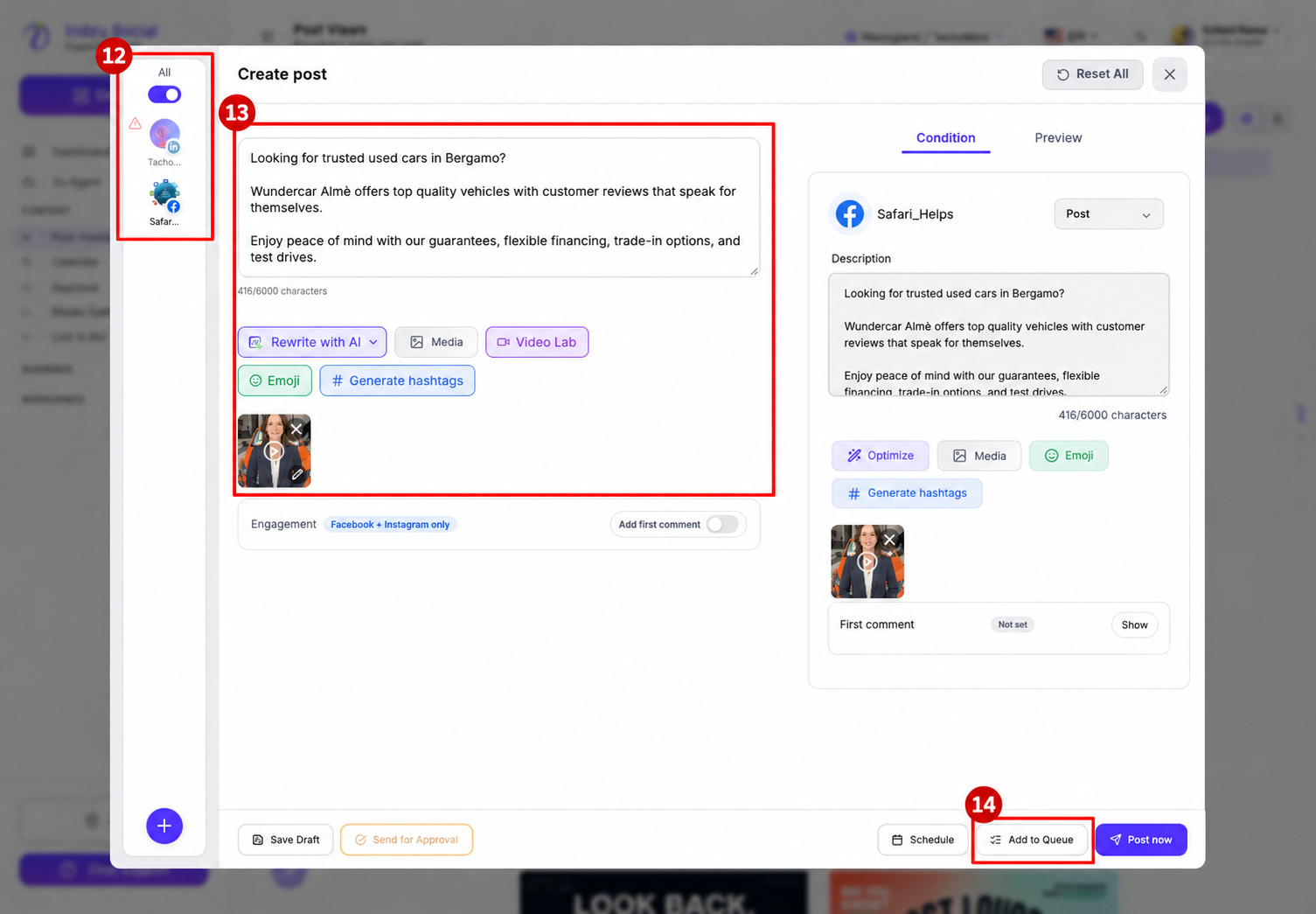
Open the generated post’s Schedule action to enter the composer. Review the post and its channel content, then select Add to Queue when available. Choose a queue, review Will post, resolve channel warnings, and confirm with Schedule via Queue. This confirmation schedules the post; opening the composer or queue picker alone does not.
Why scheduling might be unavailable
A queue needs connected channels and configured slots. At least one valid post/channel combination must remain, all blocking issues must be resolved, and enough slots must be available for the selected batch. Your plan may also limit bulk scheduling or the batch size.
If a slot is already booked by a queue using the same channel, Indzu chooses the next open slot, which may be later than expected. Posting Jitter can also vary the exact time. Always use the displayed preview before confirming.
Queue Auto-Optimize Captions may shorten overlong text and remove links first on X/Twitter. Review the final content. A queue uses the channels configured for it; check the scope rather than assuming every connected account is included.