Queue scheduling needs selected posts, a saved queue with posting slots, and usable social channels. Opening the queue picker does not schedule anything; review and confirm the final action separately.
Check the brand, posts, and queue
- Confirm the intended brand in Content → Post Views → AI Posts. Select the post-card checkboxes to reveal the bulk Add to Queue action.
- If no generated posts are visible, check the brand and media filter before generating more content.
- If no suitable queue appears, open Workspace → Brand → Posting Queue and create or edit a queue for that brand.
- Give the queue a name, select its channels, add posting days and times, and Save Changes. An unfinished queue or a day/time choice that was not added and saved cannot provide the intended schedule.
For the full setup steps, see Create and manage a posting queue.
Check channels and proposed times
- Choose the intended queue and review its channel icons and posting days.
- Confirm that the relevant social accounts are connected and authorized. Reconnect an expired account through channel settings if required.
- Review each selected post’s media, caption, and channel requirements. A channel-specific validation message needs attention before that post can be scheduled successfully.
- Check Will post at and the ready-post count. Confirm the proposed dates and times match your intention. More selected posts can occupy later queue slots; they need not all be scheduled on the same day.
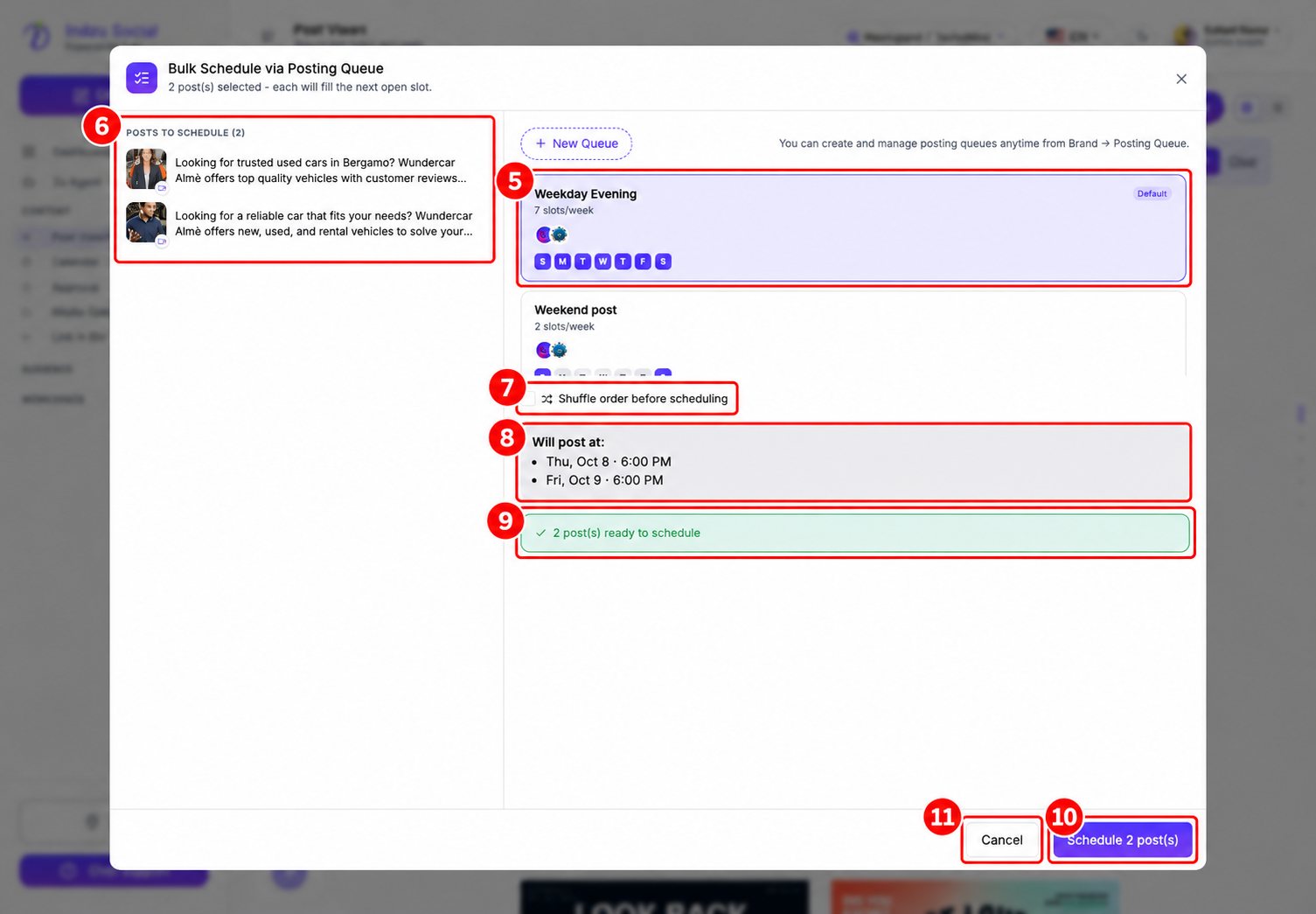
The screenshot shows a ready example, not an error. Its dates and times are illustrative. Use your own preview and resolve any warning before selecting Schedule … post(s). If unsure, select Cancel and review the queue settings.
Resolve warnings before confirming
- If a post/channel combination needs attention, read its specific error and select Fix it to edit the affected content. Return to the queue preview and check it again.
- Use Skip this channel only if you intentionally want to exclude that channel for the affected post. At least one valid target must remain; review the final ready count and channel scope.
- If a bulk-selection limit is shown, select fewer posts and work within the current plan’s limit.
- Auto-Optimize Captions can shorten over-limit captions when enabled for a queue. This is an AI action and may use credits; review the result instead of assuming every platform issue will be fixed automatically.
If the preview says Could not resolve a slot for this queue, use Edit Queue to check the saved days and times, then return to the picker. If it finds fewer slots than needed in the next few weeks, review the queue’s frequency or select fewer posts and check the new preview before confirming.
If confirmation fails
Read the displayed error. Check Scheduled or Calendar before trying again so you do not accidentally create a duplicate schedule. If the problem persists, contact Chat Support with the brand, queue name, affected channels, exact error, and a screenshot—never your password.
See Add AI posts to a posting queue for both bulk selection and the single-post composer route. AI-generation credit problems are covered separately in generation troubleshooting.