Your business profile gives Zu-AI context about what your business does, who it serves, and what matters to your customers. Keep the information specific and accurate to reduce unrelated or off-brand output.
Find the profile fields
- Open Workspace → Brand and confirm the selected brand.
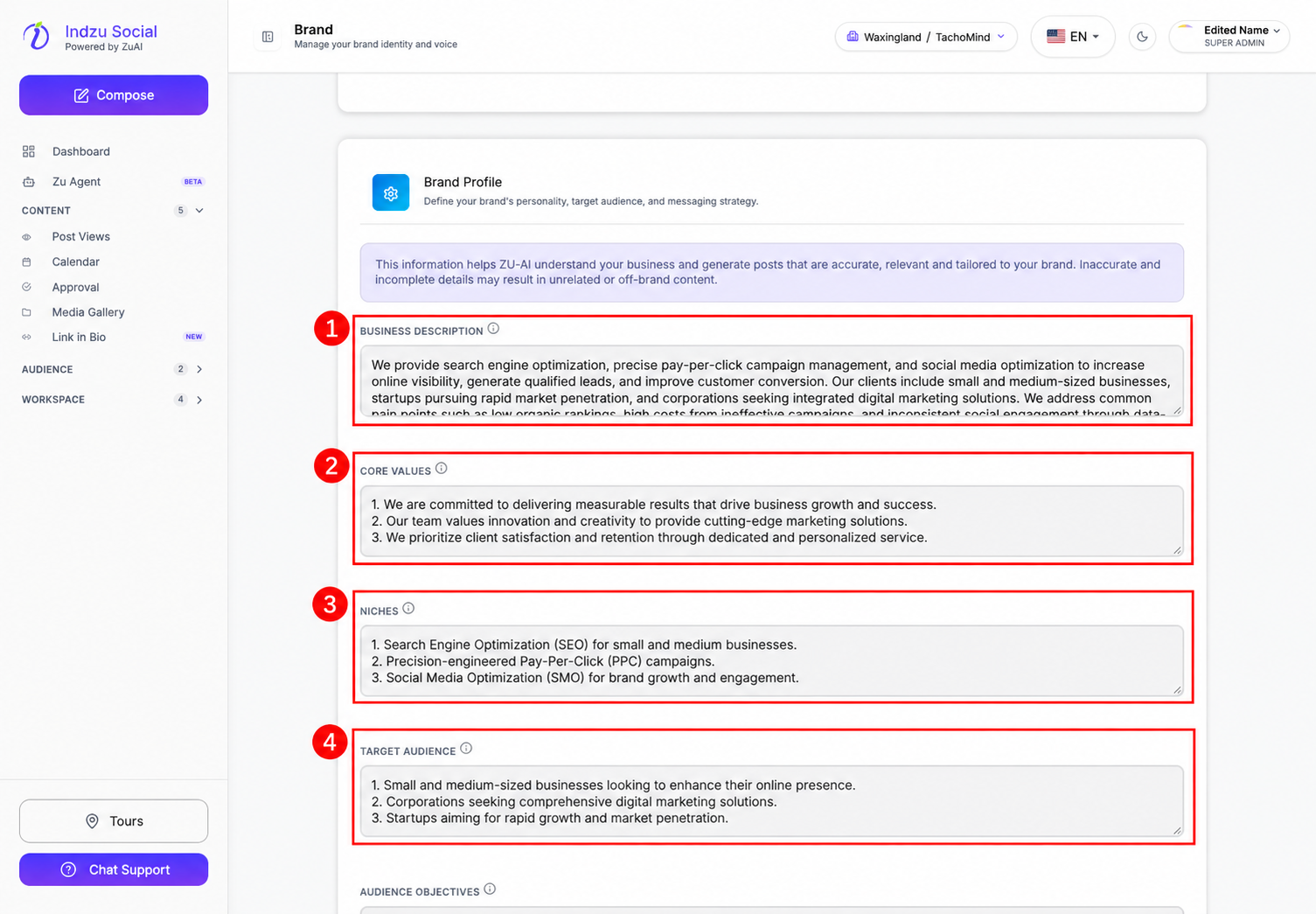
- Select Branding and scroll to Brand Profile. There is no separate Profile tab in the current Brand settings page.
- Edit Business Description, Core Values, Niches, and Target Audience directly in their fields.
Complete the audience context
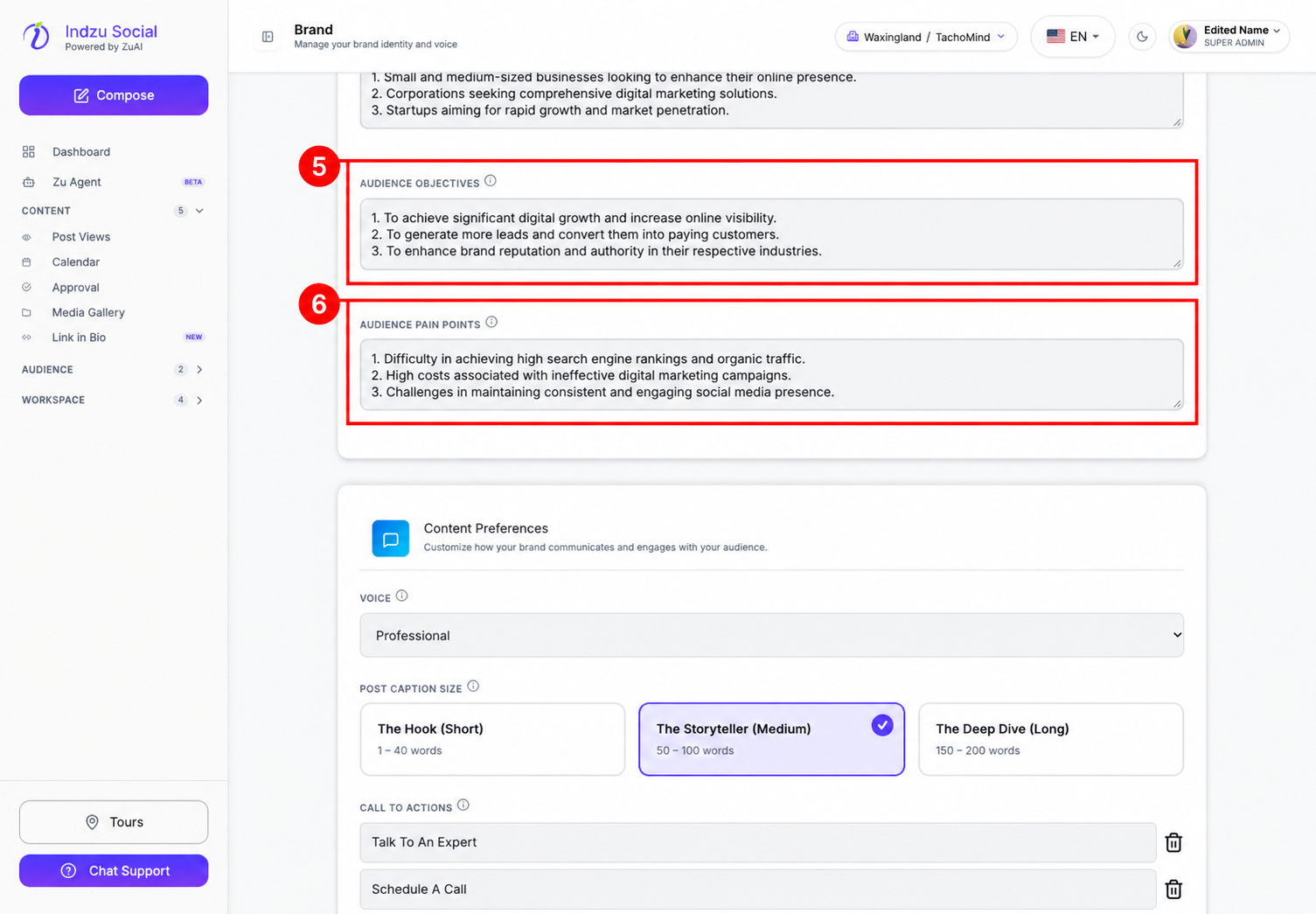
- Scroll further down to Audience Objectives and describe what your customers want to achieve.
- In Audience Pain Points, explain the problems your products or services address.
- Follow the validation and character guidance shown on screen. Review existing imported information rather than assuming it is complete or correct.
Save and review
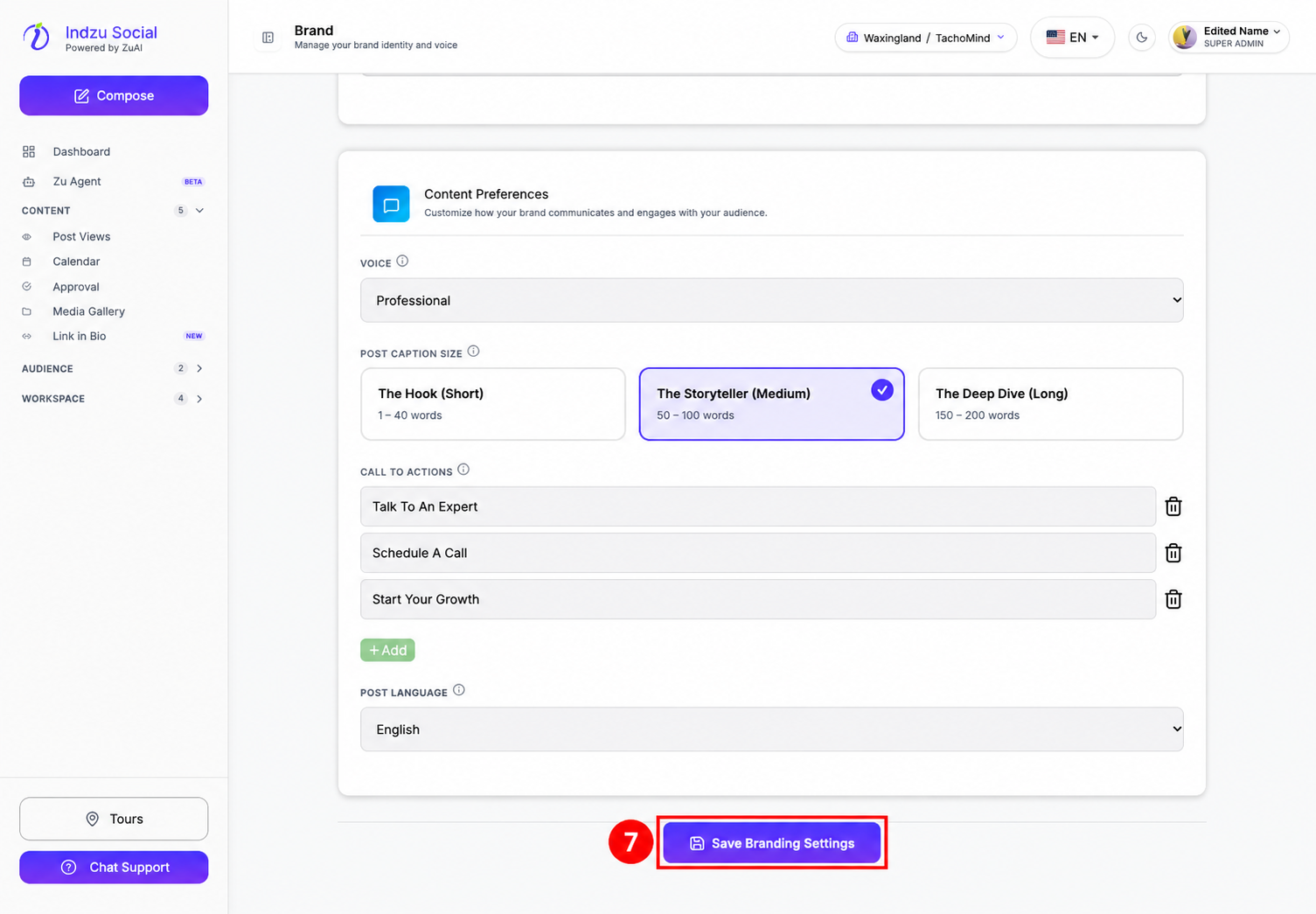
- Scroll to the bottom of Branding and select Save Branding Settings.
- Wait for the save response and resolve any validation error. If an unsaved-changes warning appears when leaving, choose whether to save or discard intentionally.
- Review future AI-generated content against the updated profile. Changing the profile does not automatically rewrite posts that were already generated or scheduled.
Use clear descriptions of your real business; avoid passwords, private customer details, or information you would not want used in generated content.
See brand voice and content preferences and topics and categories.