Prepare a post in Compose, review each destination, and choose the action that matches your intent. Manage saved or submitted content under Content → Post Views; approval work is under Content → Approval.
Compose and customize
- Confirm the workspace and brand, then select Compose in the sidebar.
- Select the intended usable channels in the left rail. All selects every usable destination; choose a subset when appropriate.
- Enter shared text manually, or use the AI menu for caption or image-and-caption assistance.
- Use Media, Emoji and Generate hashtags as needed. You can also type hashtags directly into the caption. The old generic “Tag” instruction is not the current hashtag workflow; platform-specific user tagging is a separate feature.
- Under Condition, review each full account name, description, post type, character counter, media and platform-specific options. Correct validation messages.
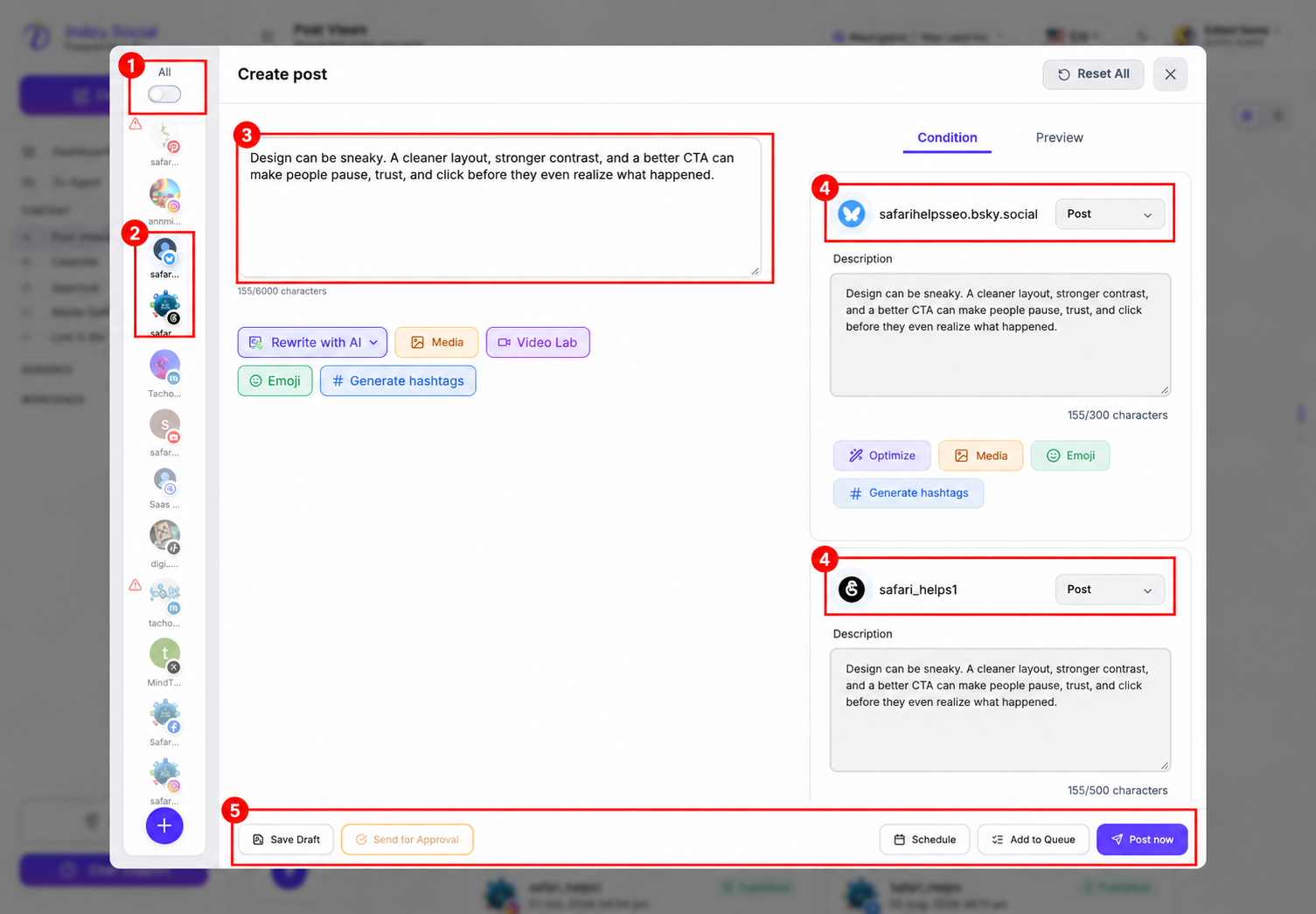
This is an unsaved example using existing published text and real selected Bluesky/Threads destinations; no staging publication occurred.
Review and choose the right action
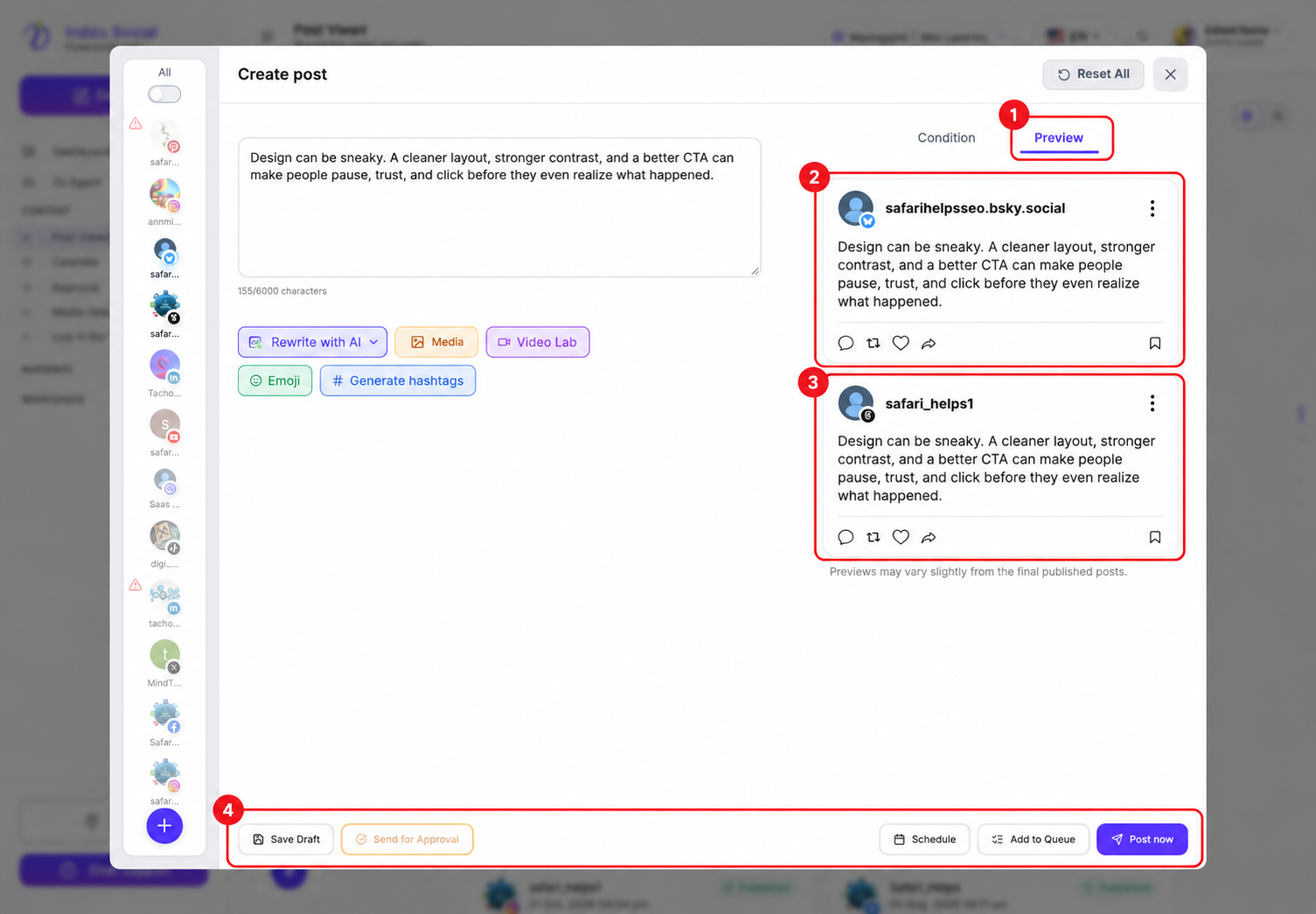
- Open Preview to inspect each destination. Return to Condition to edit; preview cards are read-only.
- Save Draft keeps a post for later work without publishing it.
- Send for Approval, when available, starts the team review flow; it is not immediate publication.
- Schedule lets you choose a future date/time and requires its final confirmation.
- Add to Queue opens queue-based scheduling; review that queue’s destinations and timing before confirming.
- Post now is for intentional immediate publication. Do not select it merely to save or preview work.
Manage existing posts
Open Content → Post Views and choose the relevant status tab, such as Draft, Scheduled, Published or Failed. Confirm the brand and channel filter before searching for a post. Use an available Edit action to inspect the post; editability and available actions depend on its status, permissions and provider support.
Deletion is separate from editing or drafting. If you intentionally choose Delete, read the confirmation and its scope carefully before proceeding. Queued groups can expose channel-specific versus all-channel removal choices. Do not assume deleting a record in Indzu will remove an already-published provider post. Cancel when the target or effect is unclear.
For a multi-image/carousel post, attach compatible assets, choose the appropriate supported post type and follow each destination’s live count/format restrictions. Review all previews rather than assuming one platform’s carousel requirements apply everywhere.
Focused help
See create a new post, add media, add emojis, generate a caption, generate an image and caption, save a draft, schedule for later and preview a post.