Turning off a topic keeps it available for later use. Deleting it removes the topic. Use the controls in the topic’s row, not the category header, when you only want to affect one topic.
Turn a topic off or on
- Open Workspace → Brand → Topics and confirm the selected brand.
- Expand the relevant category and locate the topic by its title and description.
- Use the switch in that topic’s row. In the current light theme, the enabled switch is purple with its thumb on the right; the disabled state is gray with its thumb on the left.
- Wait for the change to finish. Switch changes are saved immediately; there is no separate Save Branding Settings step.
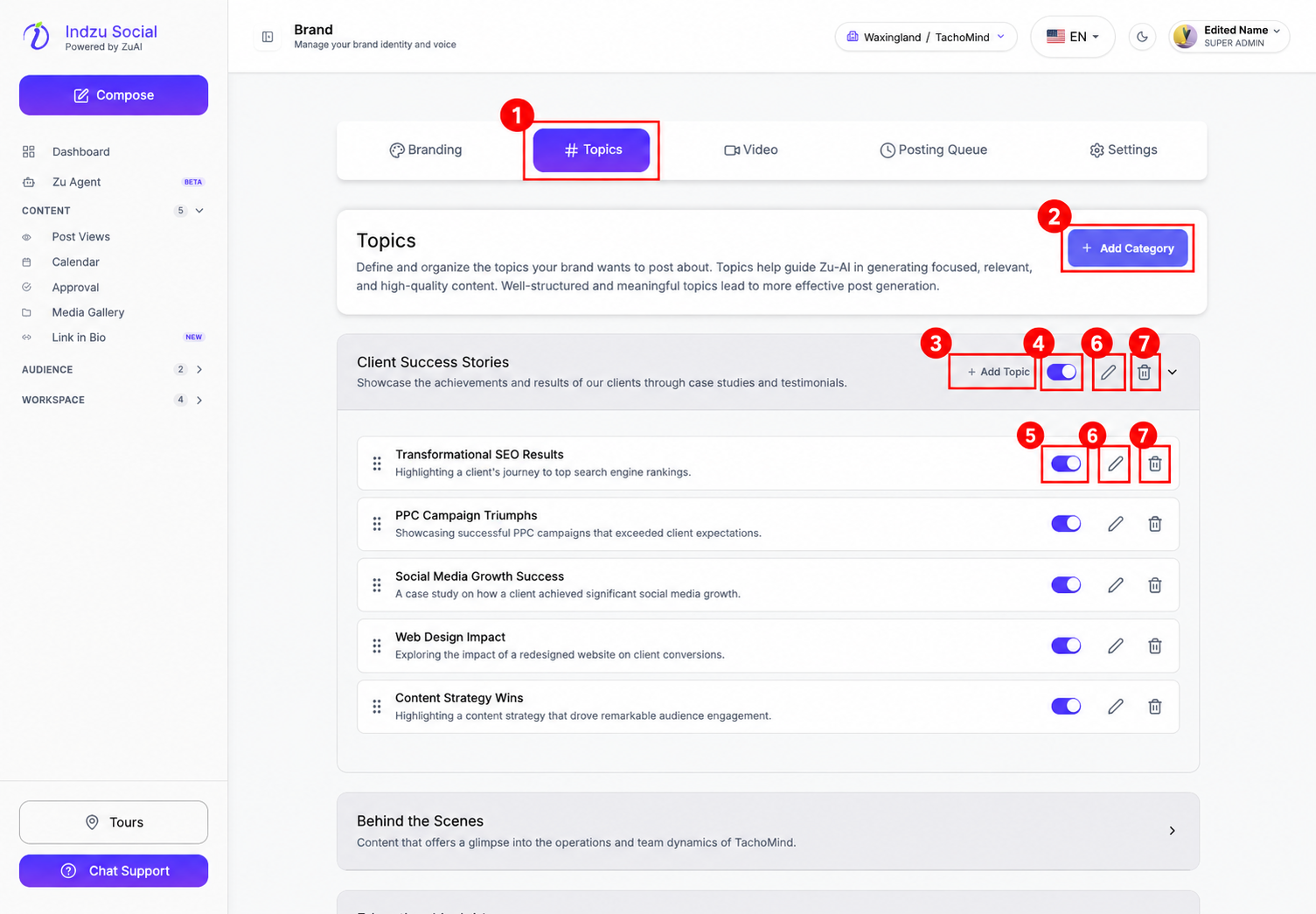
The category-header switch affects the category’s topics together. A topic switch may be unavailable if the category is disabled, you lack update access, or it is the last enabled topic. Keep at least one appropriate topic enabled.
Delete a topic
- Find the intended topic and select its trash icon.
- Read the Delete Topic confirmation carefully. Check that you used the topic row rather than the category’s trash icon.
- Select Confirm only if you intend to delete it. Select Cancel to keep it.
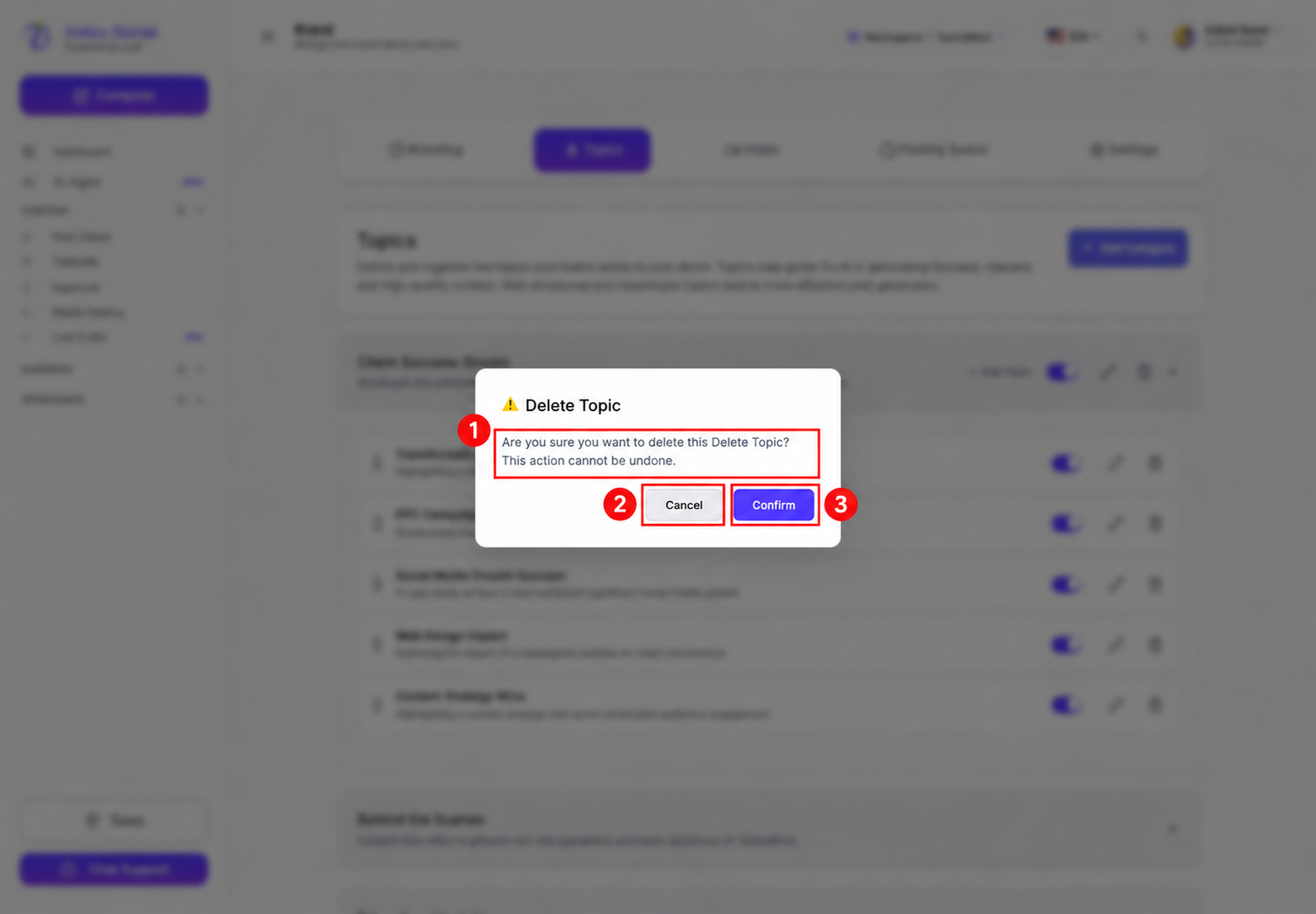
Do not delete a topic just to temporarily stop using it; use its switch instead. Removing or disabling a topic is not a way to cancel social posts that were already scheduled—review Scheduled or Calendar separately.