Use Image Post in AI Studio to generate a single-image creative. You can start from an idea, a saved topic, a URL, or an uploaded image.
Open the workflow
- Open Content → Post Views → AI Posts.
- Select AI Studio, then the Image Post workflow card.
- Choose your starting point.
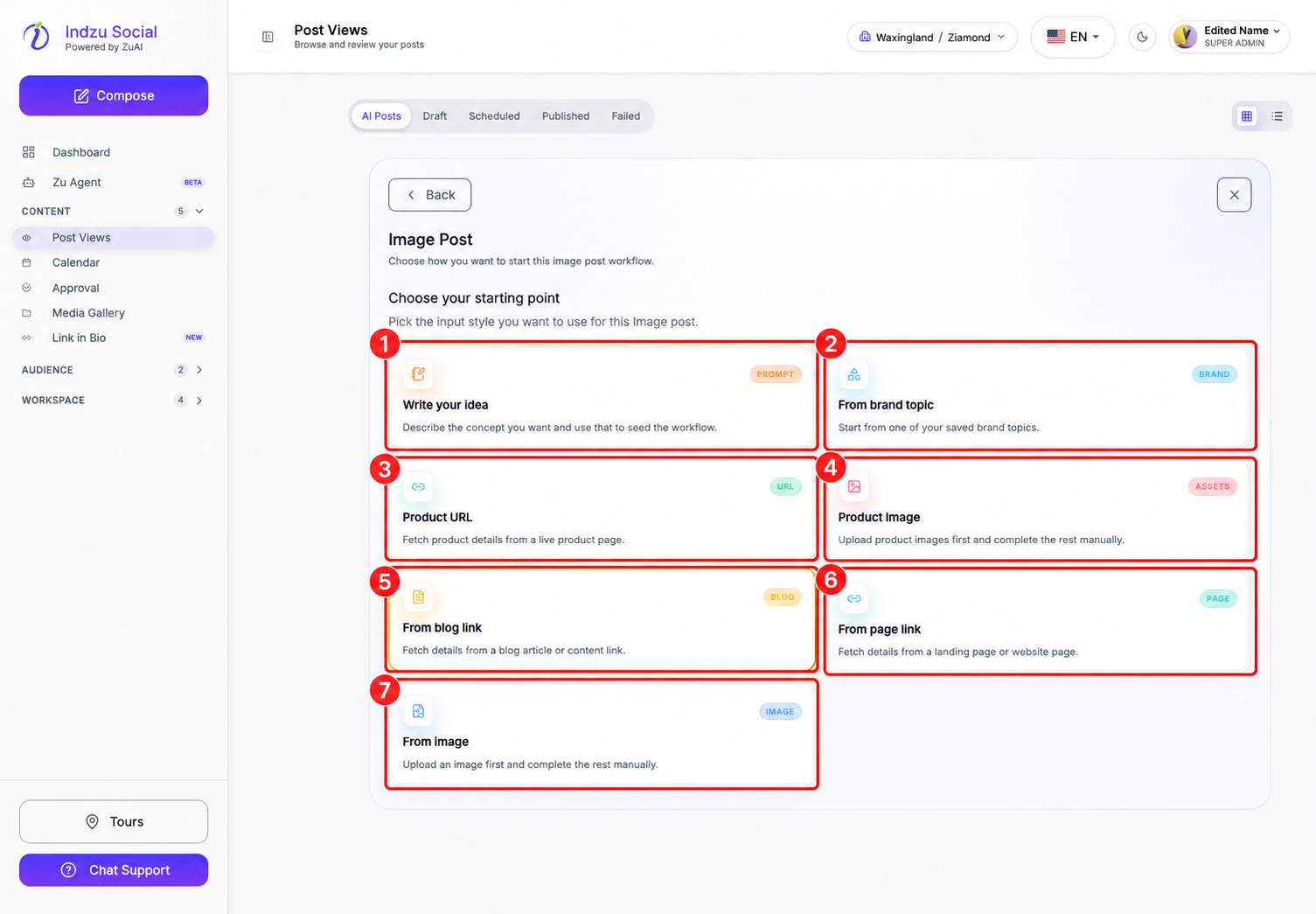
Choose a source
- Write your idea: describe the concept, tone, mood, and message. Enter at least 80 characters, following the counter on the screen, then select Continue.
- From brand topic: select one of your saved brand topics. If none are available, configure topics under Workspace → Brand → Topics first.
- Product URL: enter a product-page URL and use the fetch option. Verify the returned title, description, price, and available assets before continuing.
- Product Image: upload product images and complete the product details requested by the form.
- From blog link: provide the article/content URL and check the retrieved details.
- From page link: provide a landing-page or website URL and verify the retrieved details.
- From image: upload an image and complete the requested details manually.
Complete required fields and any asset-selection step shown for your source. If a URL cannot be fetched, check that it is public and valid or choose an appropriate manual/image input instead.
Set up your creative
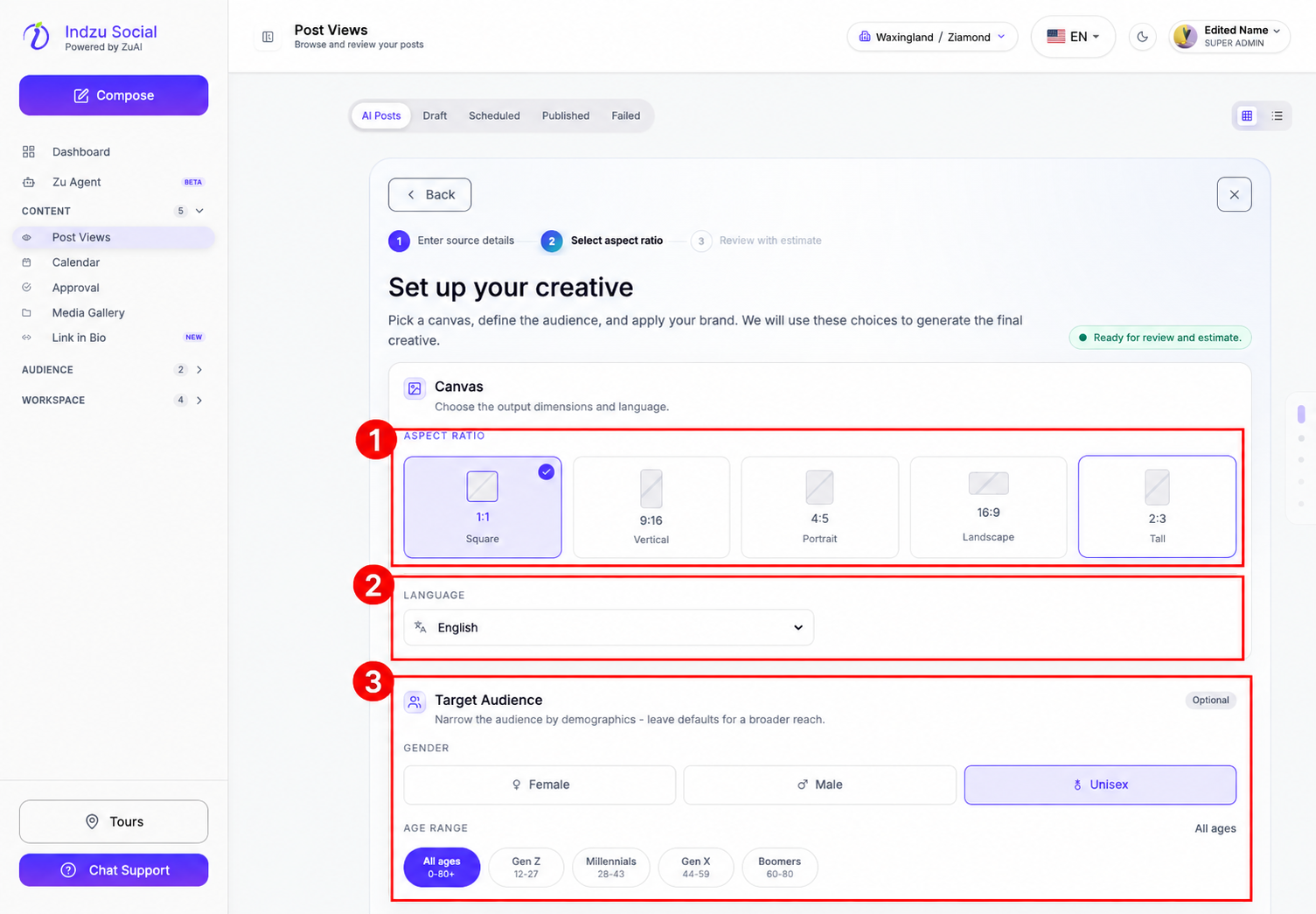
- Choose the aspect ratio: 1:1 Square, 9:16 Vertical, 4:5 Portrait, 16:9 Landscape, or 2:3 Tall.
- Choose the language and, optionally, the target audience’s gender and age range.
- Scroll down to add Special instructions and review the Brand settings. Check colours, contact information, caption size, and whether to include the logo or contact strip. These creative choices are not social-channel targeting settings.
- Select Review estimate. Check the source details, output choices, estimated credits, and available balance.
- Go back if anything needs correction; otherwise confirm generation with the final Generate control. Generation consumes AI credits.
- Once ready, review the result in AI Posts before downloading it or using it in a social post.
Image generation does not publish to your channels. Scheduling, including adding content to a posting queue, is a separate action.