The Dashboard brings together brand activity, performance, scheduling opportunities, plan usage and AI credits. Open it from the top-level Dashboard item in the left sidebar.
Choose the brand and activity period
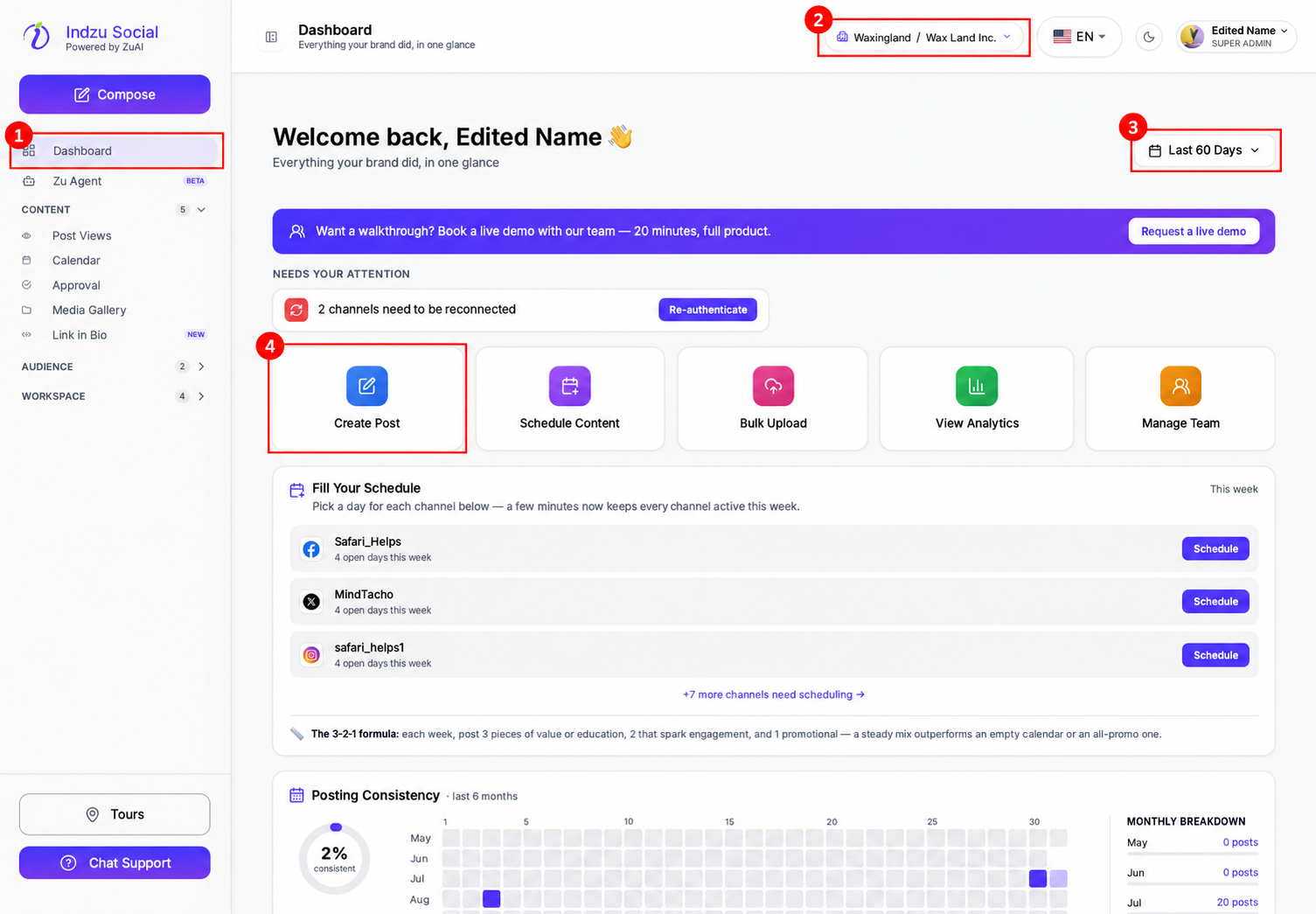
Use the brand selector at the top to check which brand you are viewing. Use the date-range selector for the applicable activity and performance data. Not every card uses that period: Posting Consistency has its own multi-month window, and AI credits reflect your credit allowance and usage.
Start common tasks
The quick-action tiles provide Create Post, Schedule Content, Bulk Upload, View Analytics and Manage Team.
Schedule Content opens the calendar, Bulk Upload opens the bulk-post workflow, View Analytics opens analytics, and Manage Team opens team management. Review the destination screen before submitting any changes.
Create Post opens AI Studio, rather than the manual composer. Use Compose in the sidebar when you want to write a post yourself. See Create a post from the Dashboard.
Review activity and performance
Scroll through Fill Your Schedule, Posting Consistency, Zu Agent observations, post-status totals, Top Performing Post, Channel Performance and Content Mix. Availability depends on the brand’s content, connected channels and accessible platform data.
Needs Your Attention can flag channels requiring reconnection. Review the affected account before taking action. AI observations are suggestions, not guarantees; check your underlying analytics before making decisions.
Channel Performance groups published-post counts by social network. Its percentages show each network’s share of those posts in the selected period; they are not engagement rates. A connected network can show zero posts for that period. View Insights on the top-performing post opens analytics for its channel.
Review plan and AI credits
Current Plan shows the plan and usage limits. The AI Credits card shows remaining credits, total usage and a breakdown for Images, Image Edits, Videos, Text and Other Brands.
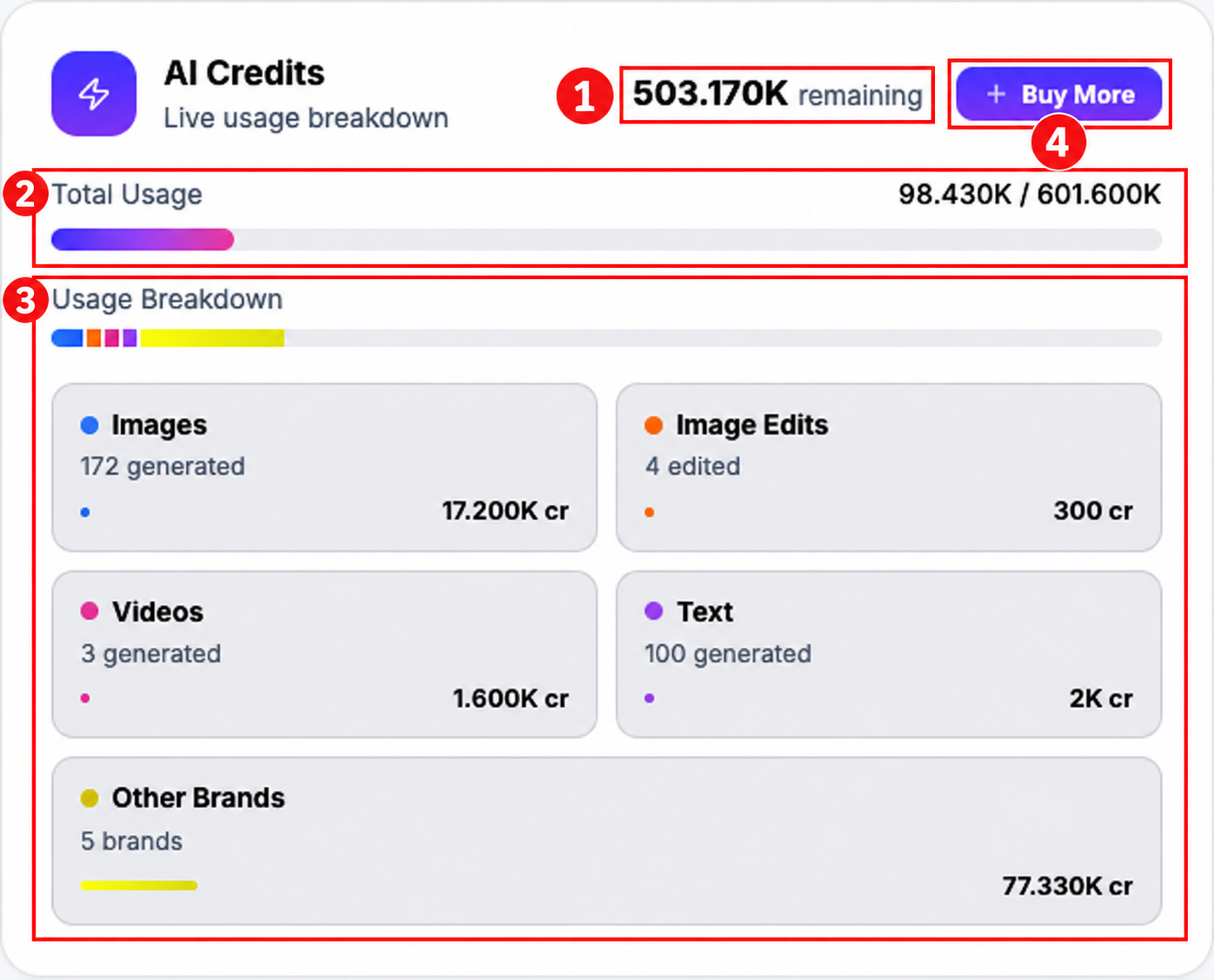
The balance is shared across the organization, while the breakdown distinguishes the selected brand from other-brand usage. The screenshot values are examples from the test account, not your own allowance.
Other Brands can also include usage that is not attributed to the displayed Images, Image Edits, Videos and Text counts. Use the event history to investigate a specific charge rather than treating this bucket as a list of deductions.
For individual credit events, use Workspace → Credit Usage. See Check your AI credit balance and usage.