Image AD Creation creates an ad image and supporting content. It does not launch a paid advertising campaign, set an advertising budget, or buy ad placements.
Choose your source
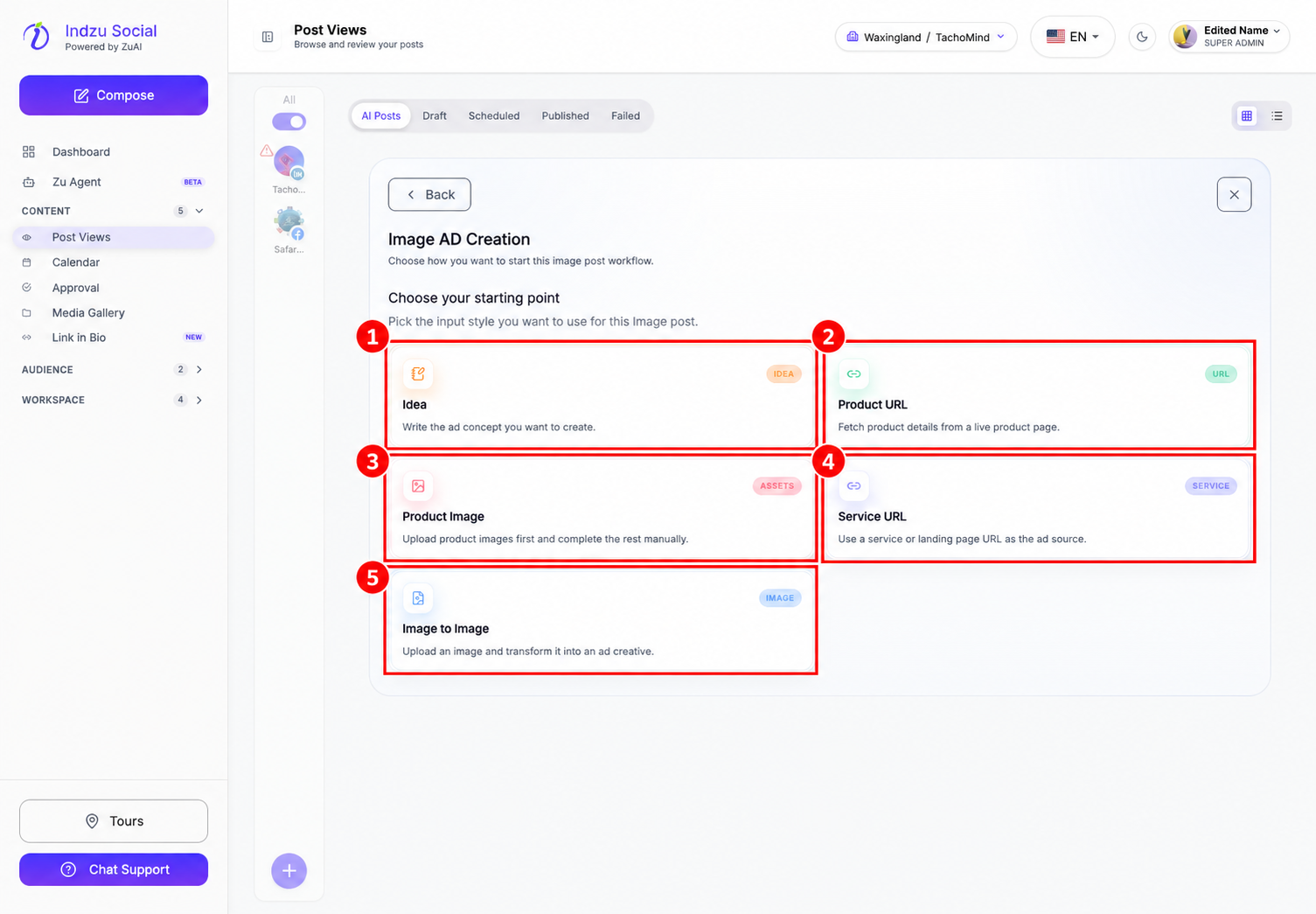
- Open Content → Post Views → AI Posts → AI Studio → Image AD Creation.
- Choose Idea, Product URL, Product Image, Service URL, or Image to Image.
- Complete the source fields. For Idea, follow the displayed minimum of 80 characters. Explain the offer, audience, key benefit, and desired action.
- For Product URL, fetch and review the product details and select the required image. Image-based routes need an uploaded or selected image plus the requested details.
- Select Continue when the source is complete.
Set the objective and call to action
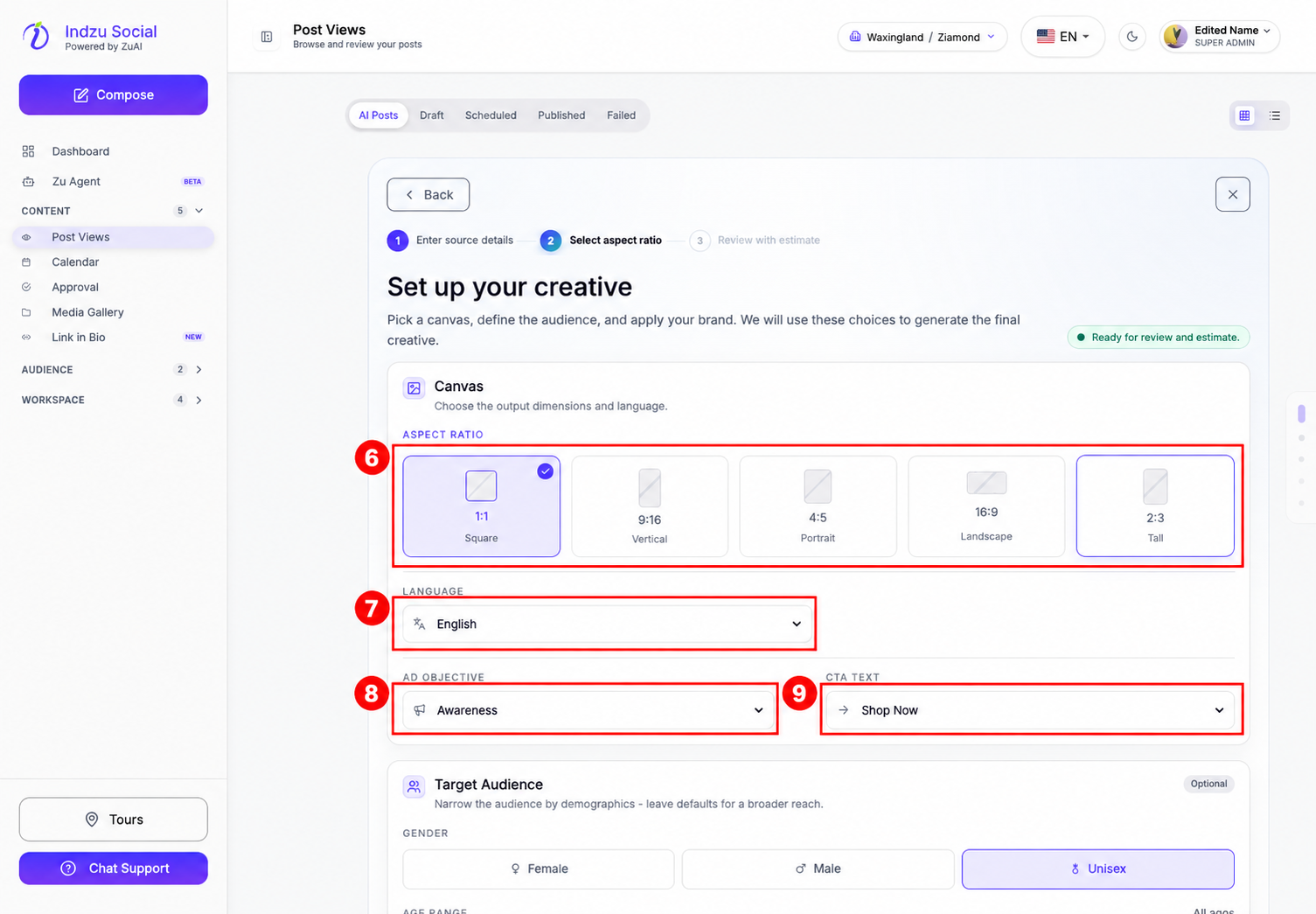
- Choose the aspect ratio and language.
- Set Ad objective to Awareness, Consideration, Conversion, Lead generation, or Retargeting.
- Choose CTA text, such as Shop Now, Learn More, Sign Up, or Get Quote, to match the offer and intended action.
- Review audience preferences, special instructions, and brand styling further down the page.
Select Review estimate, check the AI credit cost and balance, then select Generate when ready. Review the image, caption, claims, spelling, offer conditions, and destination URL before using the creative. Publishing or scheduling the resulting social post is a separate step.
Related guides
See editing generated posts and edit credits, checking AI Credits, and adding AI posts to a queue.